
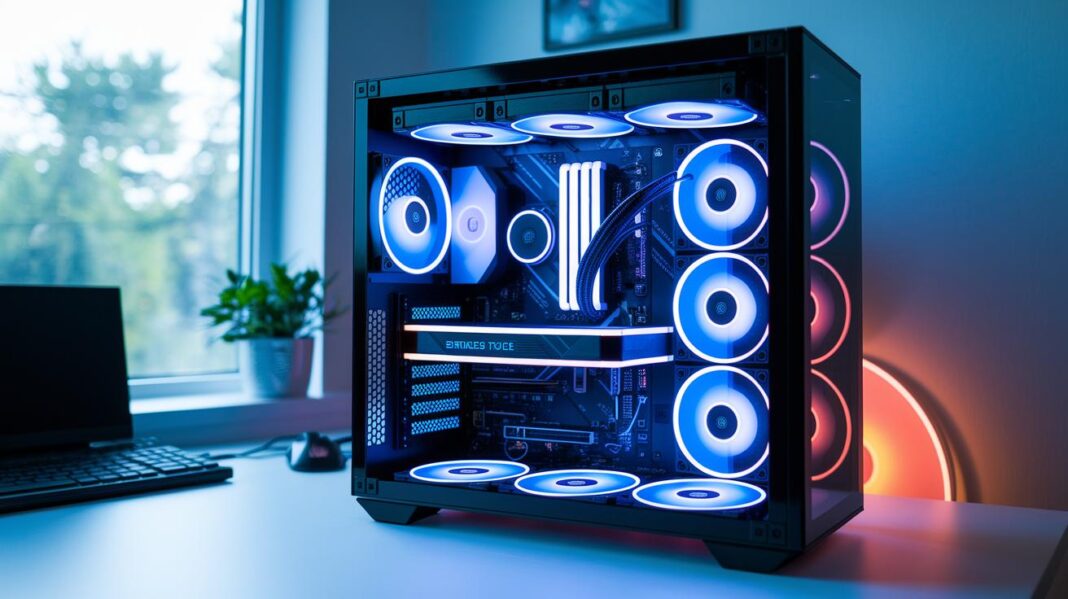

Ever wonder why your gaming rig feels like a secret powerhouse? Your PC specs set the stage for clear, focused performance. Think of your CPU as the brain that directs every move, while your GPU acts like an artist crafting amazing virtual worlds. And your RAM? It's your trusty sidekick, always ready to jump into action. Every part works together to keep your game smooth, whether you're diving into a boss fight or just browsing online. Stick around to see how each component helps your system run like a well-oiled machine.
PC Specs: Clear Power and Precision
Every gaming rig is like a crew of heroes, each with its own mission. The CPU is your system’s brain, making sure every command is met. The GPU, like a magician, paints smooth, crisp visuals that pull you right into the game. Meanwhile, RAM acts like short-term memory, keeping up with your quick moves and multitasking needs. Storage, be it HDD or SSD, handles loading and transferring your files fast, and the motherboard is the trusty manager that keeps everything connected and chatting nicely.
Knowing what each part does matters a ton because even one weak link can slow down your entire setup. A quick run-through of your system components can show if it’s time to upgrade the CPU or swap in a speedier SSD to cut down load times. It’s all about balance, just like having a well-coordinated team on your favorite co-op mission.
- CPU: Runs all your system commands, like the brain of your rig.
- GPU: Renders smooth, vibrant images so you can enjoy high-def gameplay.
- RAM: Provides quick-access memory for all those active tasks.
- Storage: Keeps your data safe and loads it fast, whether it’s HDD or SSD.
- Motherboard: Connects and communicates with all the parts to keep things running smoothly.
Before you make any upgrades, running a full system diagnostic is a smart move. It helps uncover any hidden issues and confirms that every part is ready to deliver that clear power and precision you need for both epic gaming battles and everyday computing.
PC Specs: Processor Details and Compatibility
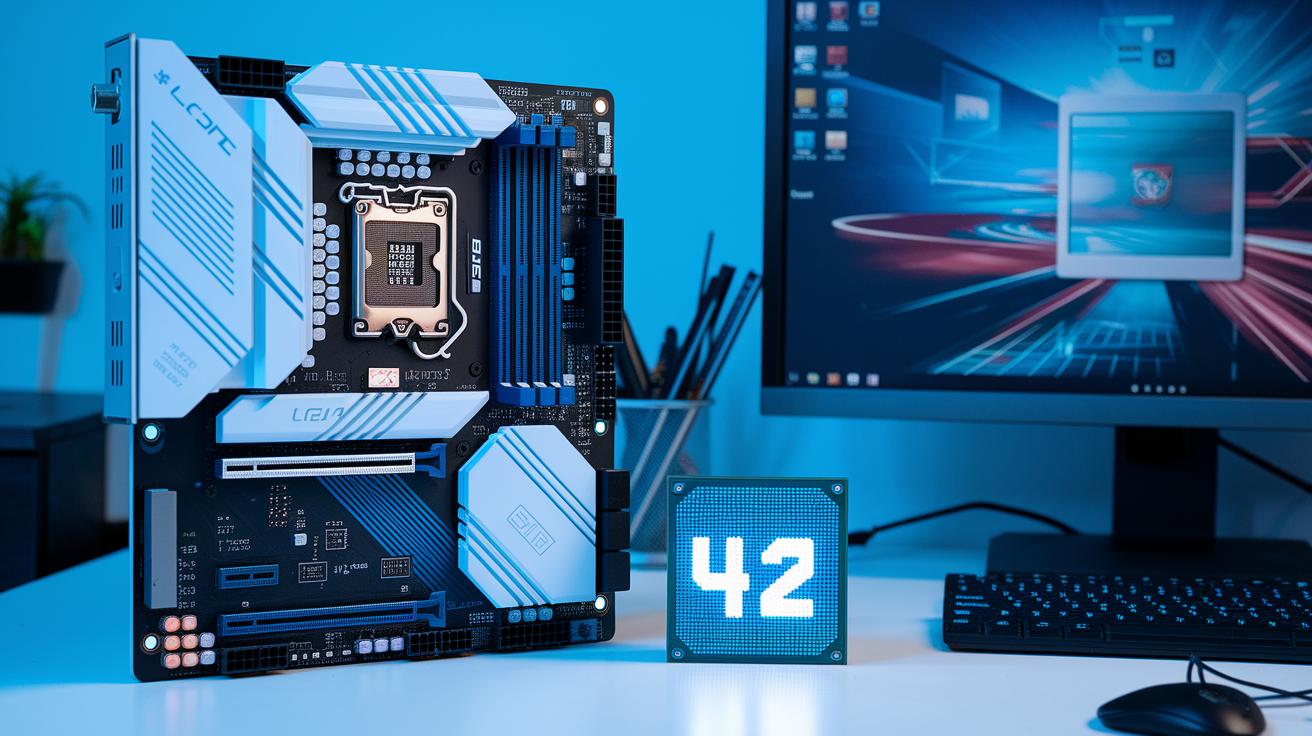
Socket design and clock speed are super important for your computer, whether you're gaming hard or just browsing online. They connect your processor to your system, making sure it uses power wisely and runs smoothly. A higher clock speed means your CPU can handle more tasks every second, which is key for those fast, action-packed moments.
Intel Processor Specifications
Let's talk about Intel. The 14th Gen lineup, like the Core i5-12400F, uses the LGA1700 socket. This design fits a specific pin layout that boosts performance and connectivity. With a turbo speed of 4.20 GHz, it can tackle nearly 4.2 billion operations every second, kind of like a finely tuned racing car ready for action. Plus, DDR5 support means your data transfers faster, perfect for keeping up with the latest games.
AMD Processor Specifications
Now for AMD. The Ryzen 7 7700 runs on the AM5 socket (it used to be called PGA) and is built for high-powered tasks. It pairs really well with DDR5 memory, making your gaming and multitasking both smooth and efficient. This chip is designed to handle heavy workloads while balancing speed and efficiency. When you compare it with Intel, each has its own cool features based on different designs and what you need.
| CPU Model | Socket Type | Memory Support |
|---|---|---|
| Intel 14th Gen Core i5-12400F | LGA1700 | DDR5 |
| AMD Ryzen 7 7700 | AM5 (PGA) | DDR5 |
PC Specs: Graphics Card Performance Overview
Your graphics card is like the secret sauce behind the awesome visuals on your screen. It takes all that game data, light, colors, textures, and spins it into the cool images you see while playing. Whether you’re zooming through a fast shooter or exploring a detailed fantasy world, your GPU handles every pixel to make everything look smooth and sharp. And hey, it’s not just about raw power, it also creates dynamic shadows and realistic reflections to keep the game feeling as seamless as your best play.
Cutting-edge features like real-time ray tracing and AI upscaling bring modern gaming visuals to a whole new level. Real-time ray tracing makes light bounce around like it does in real life, crafting lifelike shadows and reflections that turn your game into a mini movie. Then there’s AI upscaling, which uses smart algorithms to bump up frame rates and keep every detail crisp even when you change resolutions. Imagine playing your favorite game at 144 Hz instead of 60 Hz, total game changer, right?
Matching your GPU’s specs to your target resolution and refresh rate is key for a top-notch gaming rig. If you’re aiming for 4K gaming, you need a graphics card that can handle advanced ray tracing and still maintain smooth, high frame rates. On the other hand, if you’re all about competitive play at 1080p or 1440p, you might lean towards a card that balances speedy rendering with helpful AI upscaling. After all, when every millisecond counts, you want a GPU that’s got your back!
PC Specs: Memory Capacity and Speed
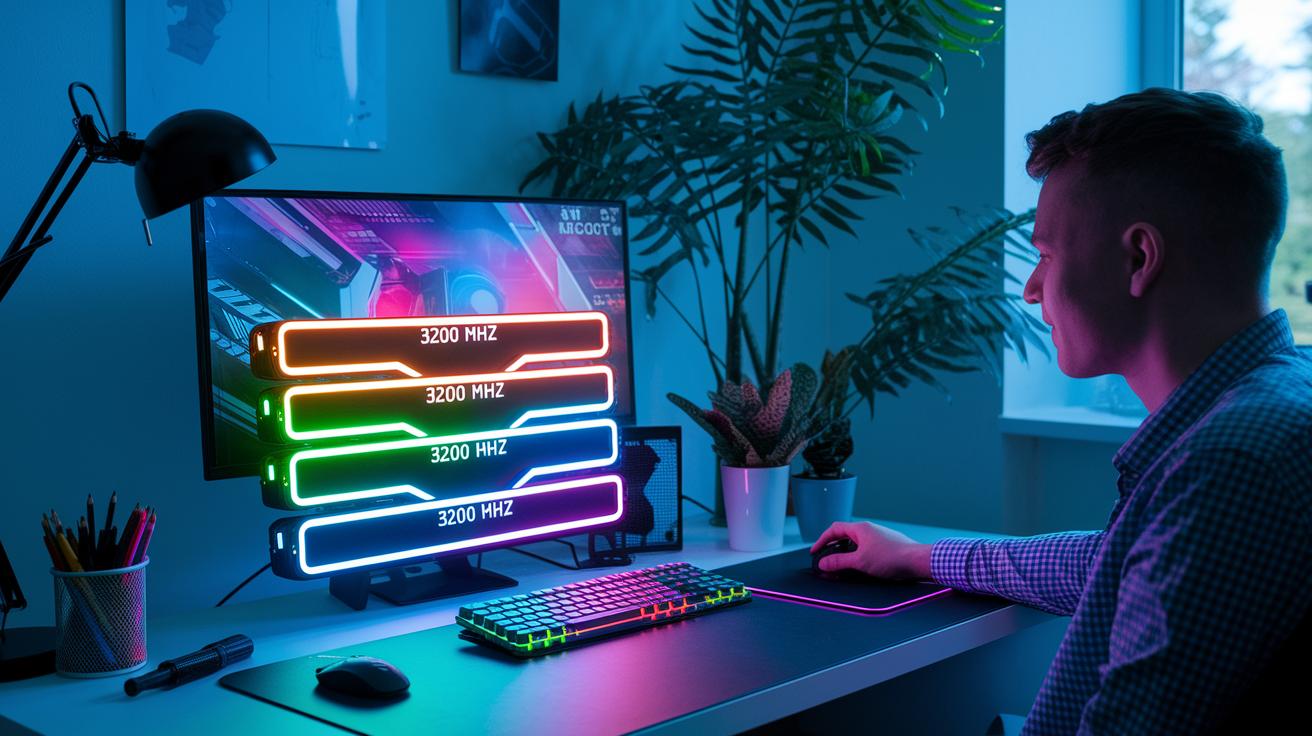
DDR4 memory runs at about 3200 MHz, but DDR5 cranks it up to 5600 MHz or more. That extra boost helps your system handle heavy game data and multitasking better. It’s a big win if you want your computer to feel snappy.
CAS latency is like the reaction time of your RAM. It tells you how many cycles the memory takes to start giving you data. When this number is lower, load times get shorter, whether you’re switching between apps or in a heated gaming round.
When picking your memory, think about how you use your computer. For everyday gaming and routine tasks, 16GB usually does the trick. But if you’re into mid-tier gaming, juggling lots of apps, or doing some light editing, 32GB is a smarter choice. Hardcore gaming, streaming in high resolution, or more intense creative work might call for a dual-channel setup, using two sticks side by side. This trick not only speeds things up but also gives you the power and precision you need for all your work and play.
PC Specs: Storage Solutions and Comparison
Hard drives (HDDs) work by spinning magnetic disks to read and write your data, while solid state drives (SSDs) use flash memory for super-fast access. SSDs boot up games in a flash, sip power lightly, and fetch your files instantly. Sure, they cost a bit more per gigabyte than HDDs, but the speed boost is worth it.
SSD storage comes in a few different shapes. The classic 2.5" SATA SSD pushes data at around 600 MB/s, which is pretty solid for most players. Then you’ve got the M.2 SATA drives that clip right into the motherboard, hitting speeds up to 6 Gbps. And if you’re chasing those ultra-fast load times, M.2 NVMe PCIe SSDs can blast data at over 1 GB/s – a game changer when you’re dealing with big, high-res video clips. Each type targets different budgets and speed needs so you can find one that fits your setup perfectly.
When picking your storage, think about how much space you need and what kind of media you work with. If you’re into streaming movies or diving into video editing, an M.2 NVMe drive can trim down those annoying wait times. But for everyday tasks or if you're on a budget, the trusty 2.5" SATA SSD should do just fine. Ultimately, match your storage choice with your file sizes and performance vibe to level up your system.
PC Specs: Motherboard Form Factors and Compatibility
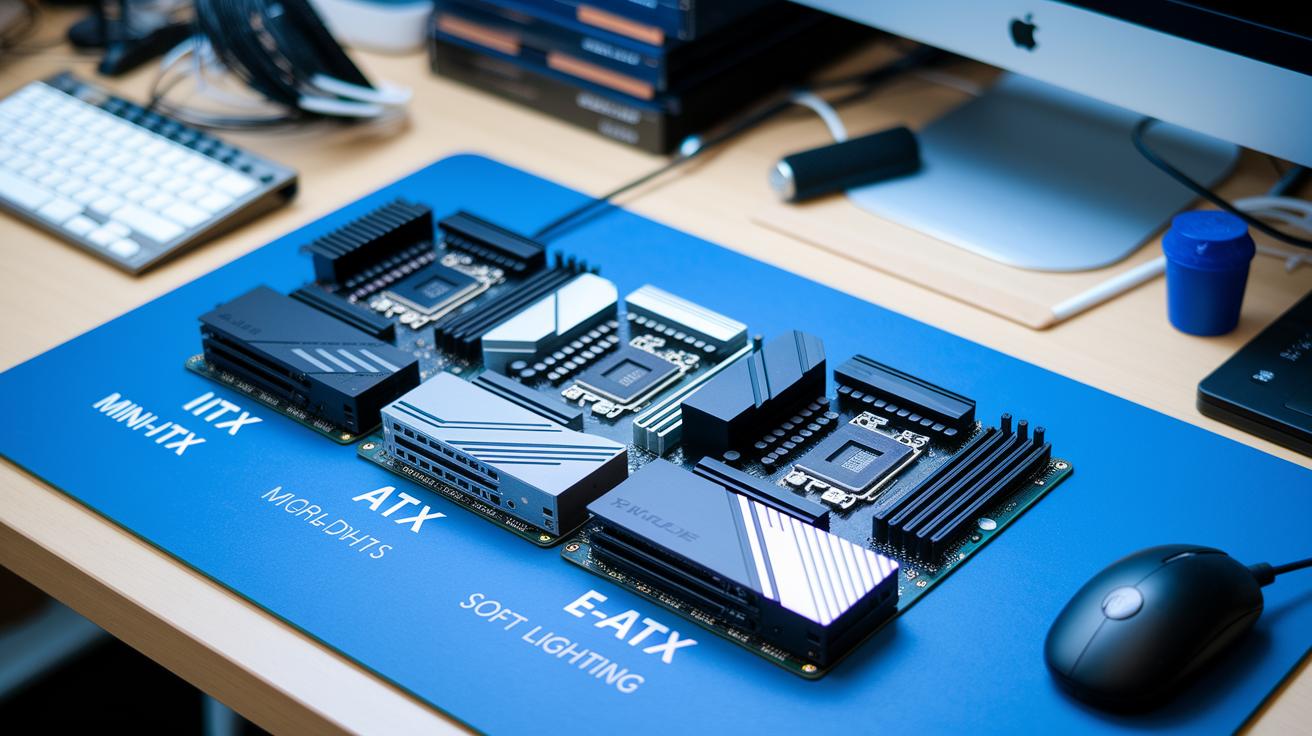
Motherboards come in all shapes and sizes, each built to suit different cases and gaming needs. Ever wondered how to pick the right one? It helps to know about the popular types like Mini-ITX, Micro-ATX, ATX, and E-ATX. Each style has its own size and slot layout to fit different builds.
Think of Mini-ITX boards like the compact heroes, they measure just 17×17 cm and are perfect for small, portable rigs. Next up, Micro-ATX boards fit nicely into mid-sized or full towers, offering more room for extra slots without hogging too much space.
ATX motherboards, clocking in at 30.5×24.4 cm, pack more PCIe lanes and RAM slots, which means they can seriously boost your gaming and multitasking game. And then there’s the E-ATX, a larger beast at 30.48×33.02 cm, built for those who need multi-GPU setups and extra features. Sure, they’re pricier and need bigger cases, but they deliver expanded performance.
These details really matter when you’re planning your build. The right motherboard ensures things like smooth airflow, plenty of slots, and a solid fit for your case. Always double-check your motherboard’s chipset and expansion slot count before you buy to avoid any tech mismatches.
PC Specs: How to Check and Diagnose Your System
If you ever wonder what’s powering your computer, Windows makes it super simple. Head to Settings, then System, then About, or open the System Information tool (just type msinfo32) to see everything from your CPU type to your RAM size. It’s a quick and easy way to get a snapshot of your hardware on both Windows 10 and 11.
For a deeper look, fire up the Command Prompt. Type in "systeminfo" to pull up a full report on your PC's specs. And if you just want to see your processor’s name, try "wmic cpu get name". These commands give you a clear peek at what’s under the hood, which is really handy when you're troubleshooting or trying to speed things up.
If you’re into extra details and like checking from different angles, try out free tools like CPU-Z and GPU-Z. They’re easy to use and show real-time info on everything from CPU speed to graphics performance. This mix of built-in tools and third-party apps makes it a breeze to see how your system is doing and spot any glitches that might mess with your game time.
PC Specs: Upgrade Planning and Configuration Guide
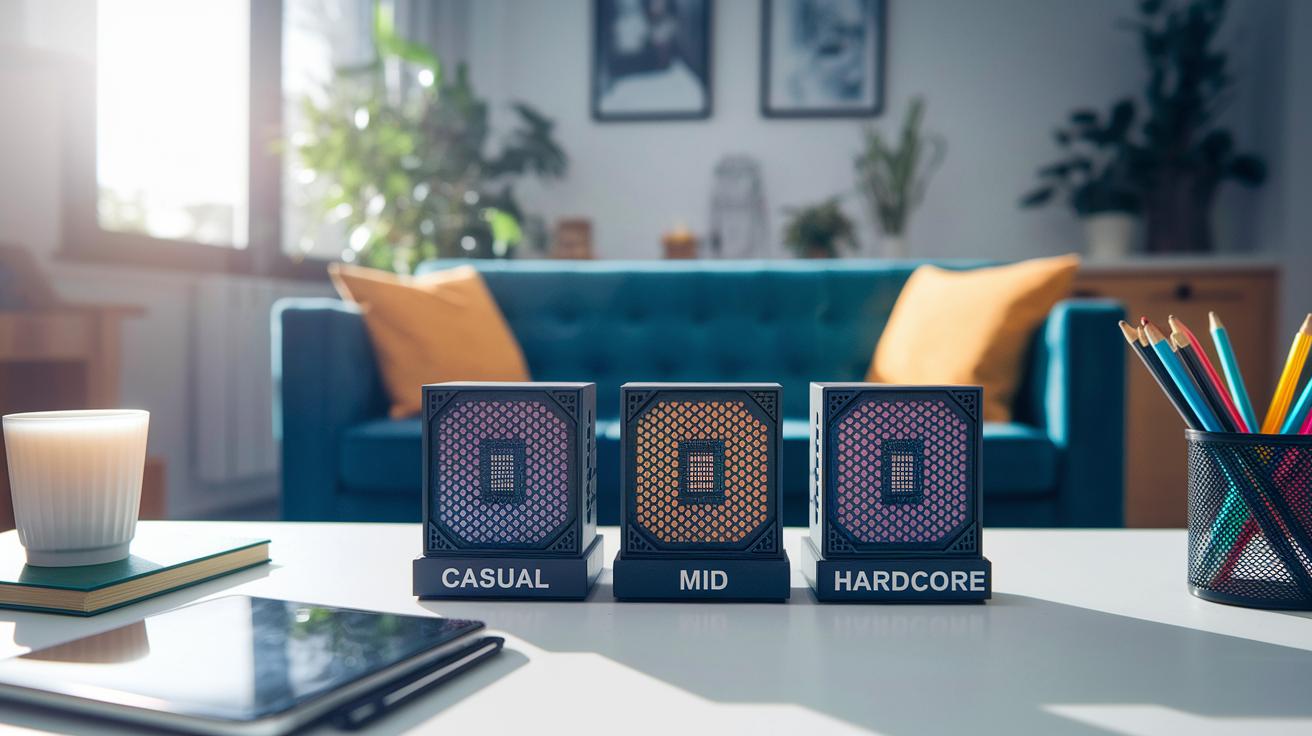
When you're thinking about a system upgrade, start by figuring out your gaming level. If you're a casual gamer, an Intel i5-12400F might do the trick. For those in the mid-tier, the AMD Ryzen 7 7700 works well, and hardcore players might need a beast like the AMD Ryzen 9 9900X3D. Picking your tier early on helps you decide which parts need the best specs, whether it's for smoother action or cool features.
Next up, double-check your current setup. Make sure the CPU socket and RAM type on your board match your new upgrade. Also, take a look at your power supply's wattage and shape to see if it can handle a fresh GPU, especially if you're planning on going with a model that draws more power. And don’t forget your case space, a bigger GPU or extra cooling might need some extra room. These little checks can save you a headache later on. For more tips on upgrading, check out this link: how to upgrade your gaming battle station.
By planning ahead and checking these details, you set yourself up not just for a smoother game now but for a system that’s ready for future tech upgrades too.
Final Words
In the action, we broke down pc specs into bite-sized parts. The post covered the role of the CPU, the impact of the GPU, why RAM matters, storage options, and the motherboard’s function.
• CPU – the system’s brain.
• GPU – powers visuals.
• RAM – handles quick data storage.
• Storage – supports game loads.
• Motherboard – connects it all.
Each section helps you measure your rig’s performance. This review is a handy guide when upgrading setups, leading your gaming experience to next-level wins. Enjoy the ride!
FAQ
How can I check my PC specs on Windows 10/11?
Checking your PC specs on Windows 10 or 11 means opening Settings > System > About or running msinfo32. These methods quickly present details like your CPU, GPU, RAM, and storage components.
What tools can I use as a PC specs checker program or online resource?
Using PC specs checker tools means relying on built-in utilities like System Information or third-party programs such as CPU-Z. These offer detailed insights into your system’s processor, memory, graphics, and storage specifications.
What are PC specs for gaming?
PC specs for gaming refer to your system’s hardware like a strong CPU, a dedicated GPU, ample RAM, and fast storage. These components boost game performance and help handle graphically demanding titles.
What do PC specs mean and what are good specs for a PC?
PC specs mean the details of your system’s hardware, like processor speed, graphics power, memory size, and storage type. Good specs depend on your tasks but usually include a modern CPU, sufficient RAM, and a capable GPU for smooth performance.
How can I see all the specs on my PC?
Seeing all your PC specs means using comprehensive tools such as the command prompt with the ‘systeminfo’ command or exploring the System Information utility. These methods list each hardware component for a full overview.