
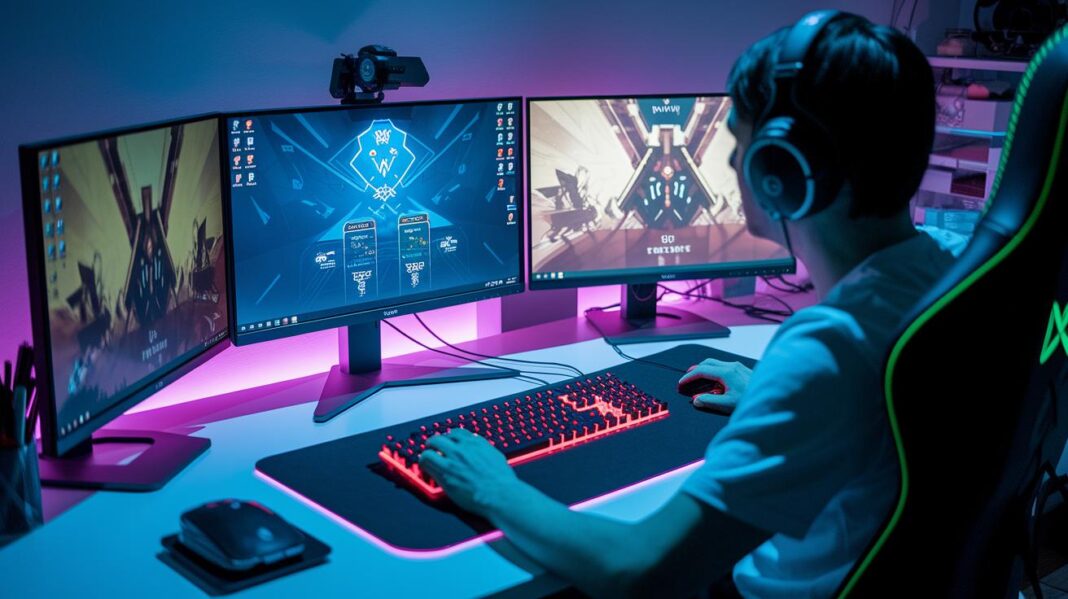

Ever notice your game slowing down when you’re in the middle of a match? It can be so annoying when your computer lags right when you need it to be speedy. I’ve got some easy tricks up my sleeve that can help make every play feel smoother and more fun.
Think of it like upgrading your favorite console. Each simple tweak gives your setup a little extra boost. Start by cleaning up your disk, tweak some key settings, and update your drivers. These steps work together to help your system run as hard as you do.
Core Steps to Optimize Your PC for Gaming Performance

Ready to level up your gaming? Here are a few easy tips to help your PC run smoother so you can enjoy higher FPS and better gameplay. Start by cleaning up your disk. Run Disk Cleanup and ditch any apps you don’t use anymore. It’s like clearing out your backpack before a raid, you end up with more space for those essential game files. I’ve seen game load times drop majorly after a cleanup.
Next, take care of your hard drive. If you’re on an older HDD, run defragmentation, and if you’ve got an SSD, make sure TRIM is turned on. This step helps your files load quicker, much like organizing your inventory for an easier hunt.
Then, dive into your PC’s settings and enable Game Mode. Just head to Settings, go to Gaming, and switch on Game Mode. It’s like having your own bonus power-up that pushes all your system resources into the game when you need that extra boost.
Also, be sure to update your GPU and chipset drivers. Go straight to the official sites like NVIDIA, AMD, or Intel. Keeping your drivers up to date is key for smooth, bug-free gameplay, it’s kind of like having the latest patch notes ready for your favorite game.
Lastly, run a quick antivirus scan with Windows Defender or your trusted software to keep any pesky malware at bay. Change your power plan to High Performance and shut down any background apps via Task Manager. This frees up your system memory and makes sure you’re all set for an immersive gaming session.
Hardware Upgrades to Optimize Your PC for Gaming
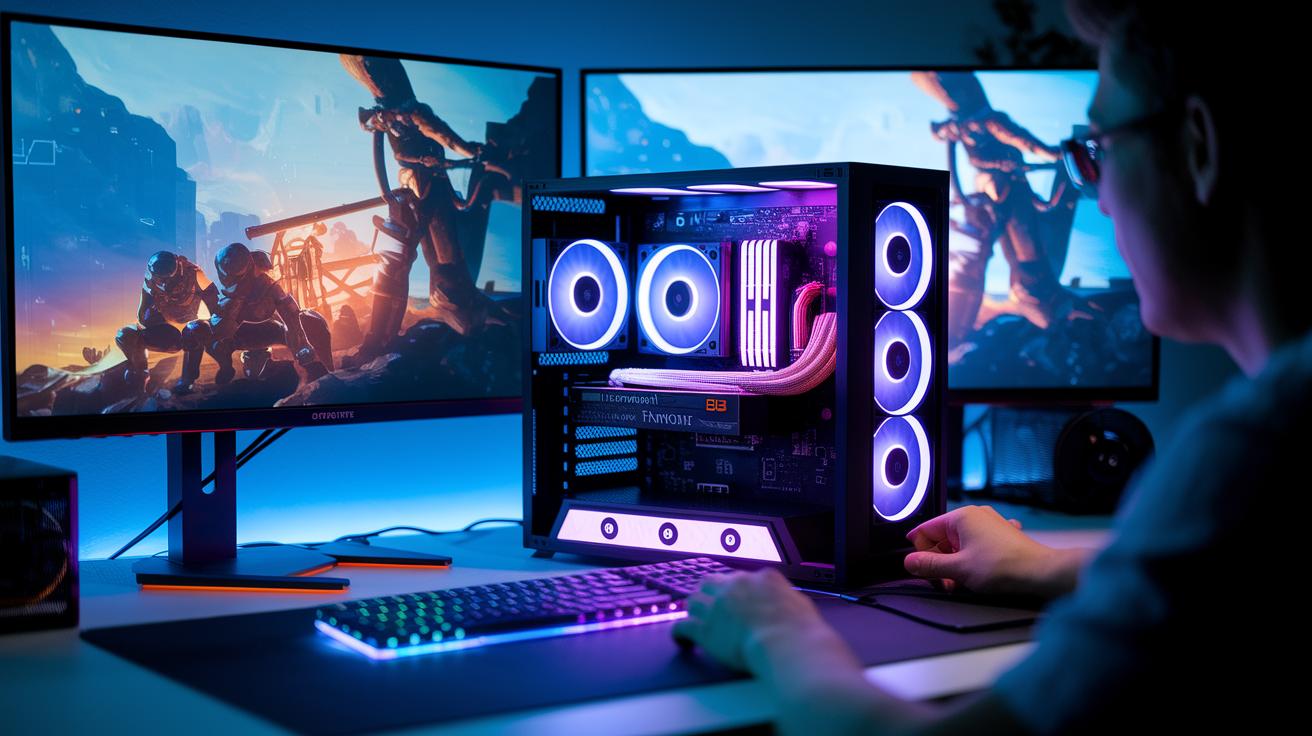
Ready to level up your gaming rig? Upgrading your hardware can seriously boost performance and make your play smoother. First off, a new GPU is a real game-changer. Go for a card with 8GB or more of VRAM (like an NVIDIA RTX or AMD Radeon RX) to enjoy snappy visuals and handle those high-graphic battles. Want more tips on safely tweaking your card? Check out this link for guides on overclocking using tools like MSI Afterburner. A few simple voltage tweaks and good temperature checks can keep your system running at its best.
Next, think about solidifying your CPU setup with a multi-core Intel i5/i7 or AMD Ryzen 5/7. These processors handle game logic and multitasking like pros, ensuring your game runs smoother. Pair this with 16GB of DDR4 RAM at 3000+ MHz, and you'll cut down on lag, letting your system breeze through intense gameplay with ease.
Storage is another key upgrade. Swapping in a PCIe NVMe SSD can cut load times down to virtually nothing, so you can spend more time playing and less time waiting around. Keeping your game files on a fast SSD means faster launches and smoother level transitions.
Cooling also plays a big part when you push your hardware hard. High-airflow cases, 120mm+ fans, or even an AIO liquid cooler help keep temperatures low during overclocking and intense sessions. And don’t forget about your power supply, a 650W+ unit with an 80 Plus Gold rating will make sure everything runs reliably.
| Component | Recommendation | Benefit |
|---|---|---|
| GPU | 8GB+ VRAM (NVIDIA RTX/AMD RX) | Smoother visuals & better frame rates |
| CPU | Multi-core Intel i5/i7 or AMD Ryzen 5/7 | Handles game logic and multitasking |
| RAM | 16GB DDR4 @ 3000+ MHz | Quick data access and smooth gameplay |
| SSD | PCIe NVMe SSD | Sub-second load times |
| Cooling | High-airflow cases, 120mm+ fans, or AIO liquid cooler | Prevents overheating during intense sessions |
Software and OS Tweaks to Optimize Your PC for Gaming

If you're looking to get your PC running smoother for gaming, start with the basics. Use Game Mode, update your drivers, shut down extra background apps, and set your power plan to High Performance. Then, if you're up for a bit more tweaking, try a registry tweak to turn off services like Windows Search that you might not need.
Tweaking the registry can free up extra system resources, which means a smoother game. For example, after backing up your registry, go to HKEY_LOCAL_MACHINE\SYSTEM\CurrentControlSet\Services\WSearch and change the value of Start to 4. This change tells your computer not to run Windows Search, cutting down on background work.
Just remember to back up your registry first. Be extra careful when changing registry settings, and stick to trusted instructions to keep your system safe.
Graphics Settings to Optimize Your PC for Gaming

Kick things off by setting your resolution to match your monitor’s native setup, or drop it to 1080p if you need more frames in those demanding games. This easy change can make your gameplay smoother, kind of like swapping an old key for a new one during a big boss fight. So, if your monitor naturally runs at 1080p, stick with that to make every pixel count.
Next, play around with your texture quality by choosing between medium and high based on how much VRAM you’ve got. When memory is tight, lowering textures can take the pressure off your GPU and keep your game running fast. And for those intense gaming sessions, consider turning down shadows and extra visual effects to reduce strain on your system.
Turn off VSync to cut down on input lag, and set your FPS just a little higher than your monitor’s refresh rate for extra responsiveness. Start with a preset like “High” and then adjust the sliders until you hit your target frame rate. If you’re looking to fine-tune your input speed, check out the gaming mouse sensitivity settings guide at https://funcomputers.com?p=1327.
Network Tuning to Optimize Your PC for Gaming

Start by using a wired Gigabit Ethernet connection instead of Wi-Fi. This gives you lower latency and a steady ping, helping you enjoy smooth online matches and lag-free streaming. Think of it like plugging your console straight into the action.
Next, tweak your router settings with QoS. Set your gaming device’s MAC or IP address to get top priority while other devices wait their turn. It's like your gaming rig gets to jump to the front of the queue.
Also, take a minute to clear your bandwidth. Close torrent apps, streaming programs, and any background tasks that might slow you down. It’s just like cleaning out your inventory so you carry only what you need for the next epic battle.
Finally, pick game servers that are closest to you. And if you’re into cloud gaming, make sure your connection hits at least 15 Mbps for smooth, responsive play. This keeps the gameplay crisp and ready for whatever challenge comes next.
Performance Monitoring to Optimize Your PC for Gaming

Keep a close watch on your rig using easy-to-use tools that dish out live updates while you play. Benchmark tools like 3DMark and Heaven Benchmark stress your GPU and show your FPS numbers. For instance, running 3DMark might reveal that dip in your scores, making you think, "Wow, my frame rates just tanked mid-battle, I might need better cooling!"
In-game overlays like MSI Afterburner OSD or Radeon Overlay also help out by showing you live stats such as GPU and CPU temps and FPS. They let you see potential slowdowns as they happen. You can also check out Windows Resource Monitor for details on how much CPU, memory, or disk space each app is gobbling up. This way, if one task is hogging your system, you'll catch on quickly.
Here's a quick checklist:
- Run benchmark tools (3DMark, Heaven Benchmark) to set performance baselines.
- Use in-game overlays (MSI Afterburner OSD or Radeon Overlay) to monitor key stats.
- Check Windows Resource Monitor to spot any resource-heavy tasks.
Maintenance Routines to Optimize Your PC for Gaming Longevity

Keeping your PC in shape is a lot like getting ready for a big boss battle. It means regular check-ups so your system stays smooth and game-ready. Every month, run a Disk Cleanup to delete old temp files and browser caches, you know, like clearing out old loot you don't need anymore. If you’re on an HDD, spend a little time each week defragmenting your disk to keep files easy to reach, just like organizing your game inventory.
For anyone using an SSD, updating your firmware with the manufacturer’s tool is a solid move. Even a small update can help your games load faster and run smoother. Every few months, run a driver check with a trusty updater tool to make sure nothing is outdated that might slow you down. And don’t forget, a simple system restart can work wonders, clearing out memory leaks and finishing up background updates to keep your gameplay as smooth as possible.
Here's a quick checklist to keep your rig in top form:
- Monthly Disk Cleanup: Get rid of temp files and browser caches.
- Weekly Defragmentation (HDD): Tidy up file locations for quicker access.
- SSD Firmware Updates: Use the manufacturer’s tools for the latest fixes.
- Quarterly Driver Checks: Run updater tools to keep everything current.
- Regular System Restarts: Clear memory leaks and let background updates finish.
Final Words
In the action, we broke down a clear roadmap for boosting performance. We covered freeing up space, system cleanups, and precise hardware tweaks. Quick gaming setup optimization and OS adjustments were explained step-by-step. We also touched on tuning graphics, streamlining network settings, and keeping tabs on performance with handy tools. Regular maintenance rounds off our guide.
This is your go-to guide on how to optimize pc for gaming. Enjoy smoother play and keep pushing toward those high scores!
FAQ
How to optimize PC for gaming on Windows 10 and Windows 11?
Optimizing your PC on Windows 10 and 11 means enabling Game Mode, updating drivers, cleaning disk space, and tweaking power settings. This helps reduce input lag and boosts game performance.
How do I fully optimize my PC for gaming quickly?
Fully optimizing your PC quickly means freeing up disk space, updating GPU drivers, disabling background apps, and adjusting power plans. These steps upgrade game responsiveness in minutes.
How do I optimize my PC for games like CS2, Valorant, or for AMD systems and gaming content on YouTube?
Optimizing for specific games means adjusting in-game settings and keeping your drivers current. Customizing settings based on your hardware can improve performance whether you’re playing CS2, Valorant, or streaming gaming videos.
Is 500 FPS overkill?
Running 500 FPS might be overkill since most monitors refresh around 144 Hz. Matching your FPS to your display reduces unnecessary load and makes gameplay smoother.
How many FPS can a 700 dollar PC run?
A 700-dollar PC typically runs modern games around 60 to 100 FPS, though exact numbers depend on the game and settings. Fine-tuning graphics can help optimize performance.
How can I optimize a laggy PC for gaming?
Optimizing a laggy PC means closing unused apps, updating drivers, cleaning up disk space, and adjusting power settings. These actions help reduce lag and improve in-game performance.