
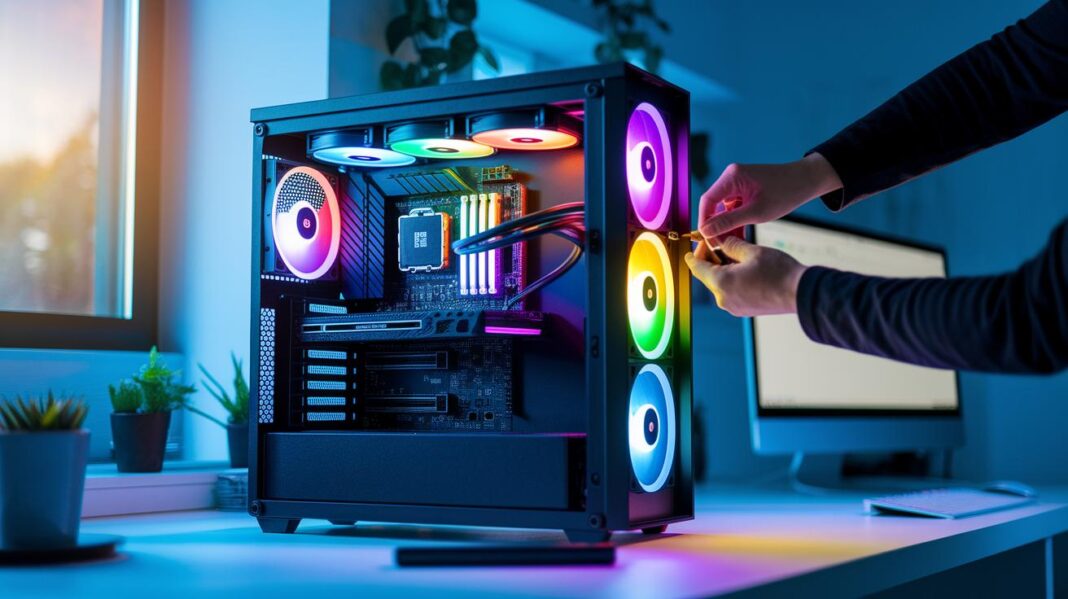

Ever thought your PC could play like a high-end rig? Upgrading isn’t just about swapping pieces, it's about making every part work in sync. Picture your CPU, memory, and security settings teaming up like a squad during a tight game. Taking a few simple steps can smooth things out, so you can dive into new games and software without any major headaches. Get ready to see your system fire on all cylinders.
Assessing Your PC for Compatibility
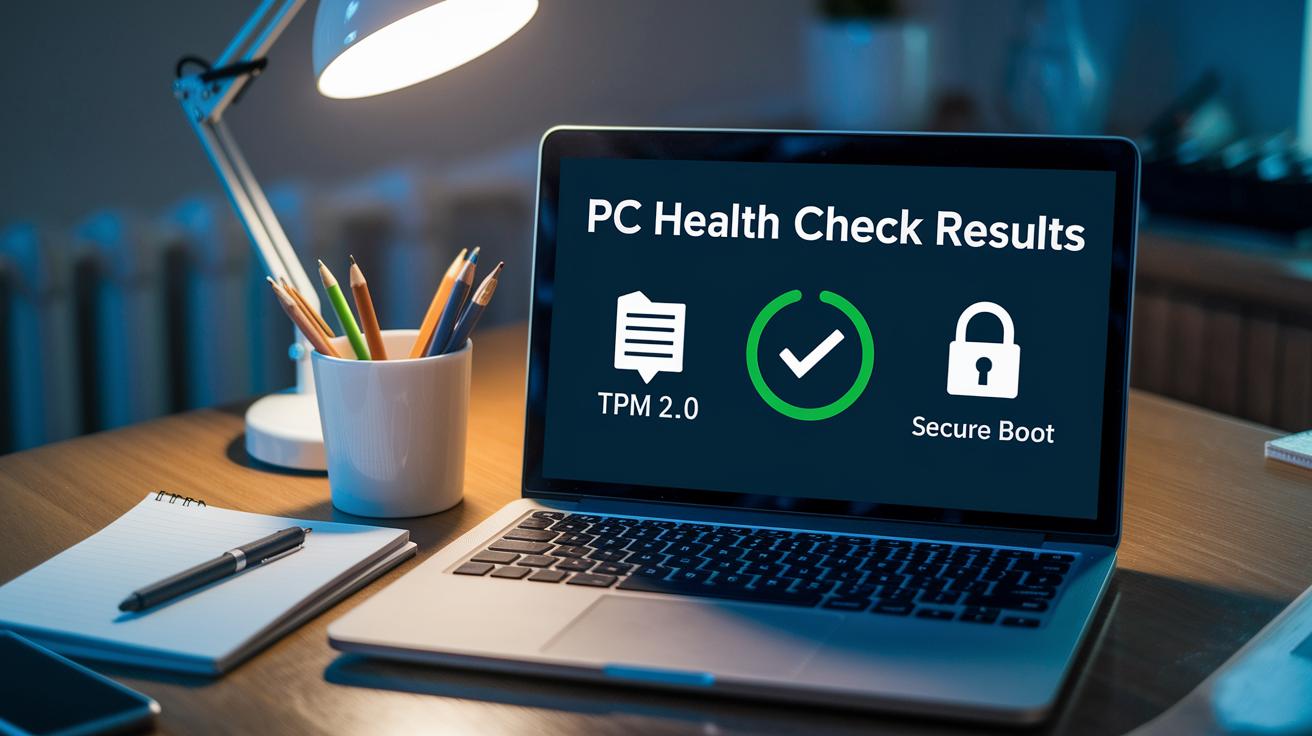
First, fire up the PC Health Check Tool to size up what your computer can do. This tool quickly checks your CPU, RAM, and storage so you know if your system is ready for what's next. You might see a message like, "CPU meets baseline requirements," which means you're good to go.
Next, make sure your computer’s security settings are turned on. Check that TPM 2.0 is active, which works like a tiny security guard for your data. Also, ensure Secure Boot is enabled so that at startup, only trusted software loads. Think of it as letting in only the VIPs of programs.
When the Health Check Tool gives you the green light, grab a printable Compatibility Checklist and mark off each step for all your devices. It’s like tracking your progress in a game, every check is a win and helps you spot parts that might need a tweak.
Once you’ve reviewed everything, decide if you need to upgrade some parts, replace the whole system, or stick with your setup a bit longer. If your PC meets the basic needs, it’s set to run newer software without immediately splurging on new hardware.
For example, you might see a note saying, "Verify TPM 2.0 to defend against credential theft." It keeps you alert to how important security is, just like making sure your game character is well-equipped before a big challenge. Check each step carefully to ease the transition into any system upgrades.
pc compatibility: Effortless System Upgrades
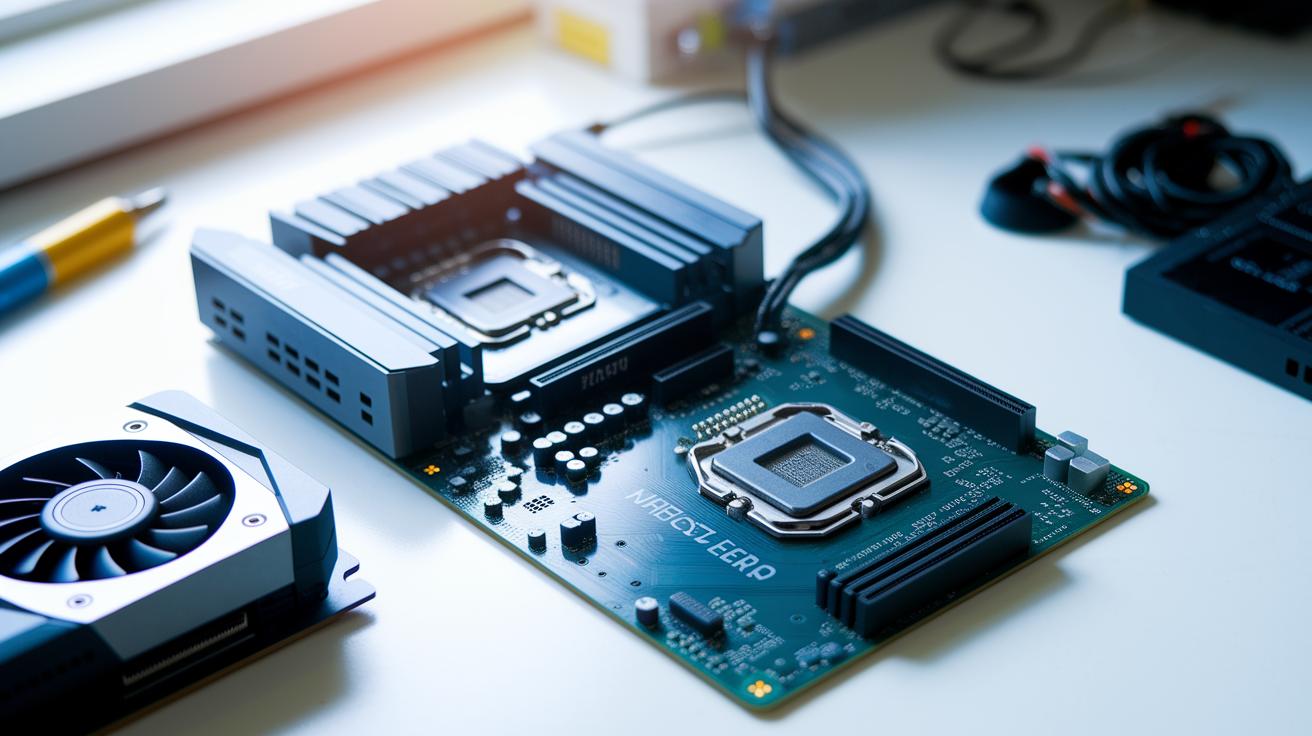
When your computer's parts work together like a solid team in your favorite co-op game, everything runs smoothly. Think of each part, the CPU, motherboard, RAM, storage, and GPU, as essential players that must all match up perfectly. It's like having the right tool for the job; if one doesn't fit, the mission just won't work.
A big win is matching the CPU socket with the motherboard. For instance, a CPU built for one socket won't team up with a different board. Memory types, whether it's DDR4 or DDR5, can seriously affect how fast your system runs. And just like choosing the right weapon, your graphics card and other peripherals need to line up with your board's design. Plus, if your power supply can't deliver enough juice, even top-notch components won't perform at their best.
Don't forget about firmware. Settings like Secure Boot and TPM 2.0 keep your system safe, kind of like making sure you've got the right key before unlocking a new level. A quick check of your power connections and firmware is just like verifying your loadout before a big match.
When parts don't match, your system can slow down or even crash, holding back performance. But when everything is spot on, it's like leveling up your character, smooth, satisfying, and ready for the next challenge.
Diagnostic Tools for Verifying PC Component Compatibility
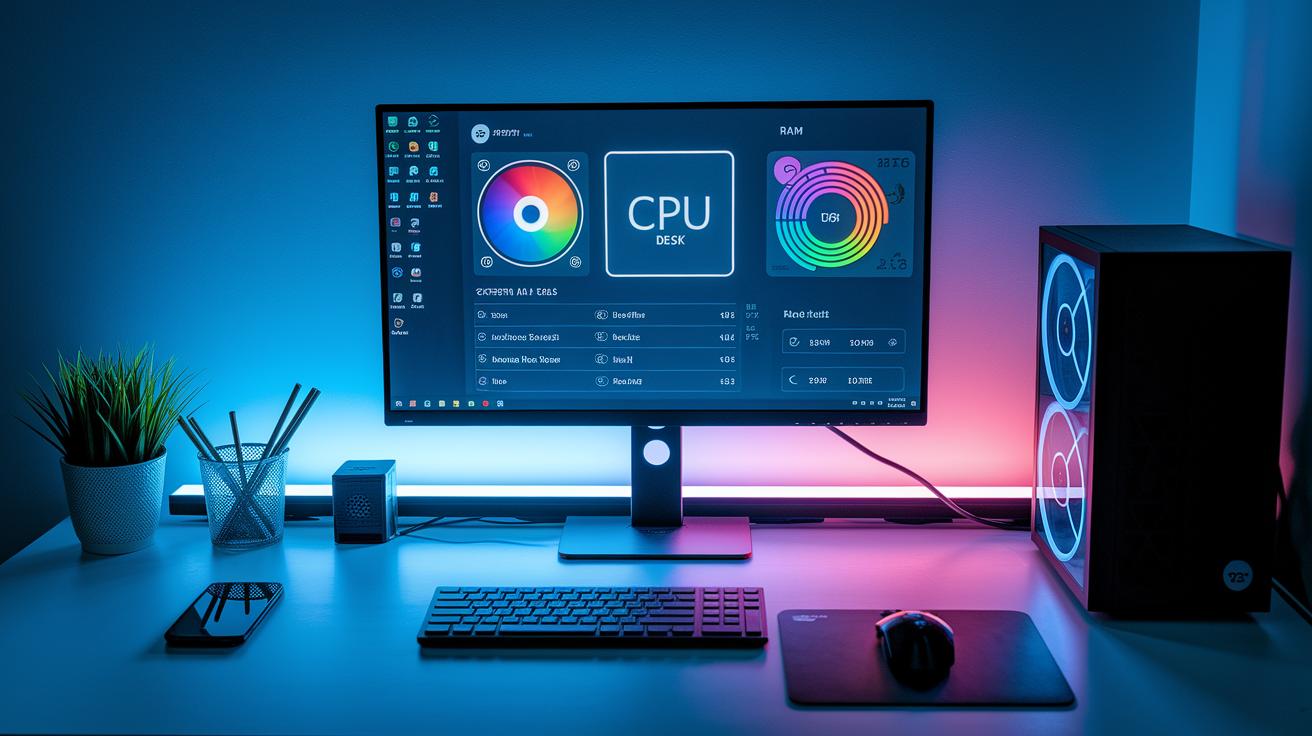
Microsoft's PC Health Check Tool gives you a quick look at your system details, making sure your operating system and hardware meet the basics before you invest in new parts. It’s like a fast checkpoint to avoid any mismatches when you plan your upgrades.
Then, there are extra apps like CPU-Z, GPU-Z, and Speccy that get into the nitty-gritty. They dig up low-level data such as your CPU socket type, memory specs, and firmware settings. For instance, if CPU-Z shows "Socket AM4," it's a clear sign that your processor and motherboard are in sync. This way, you can be confident everything will play nicely together.
These tools also confirm important settings like Secure Boot and TPM, checking all parts of your build to make sure they match up perfectly. It’s similar to checking your loadout before a key in-game battle, you want to be sure everything is ready to go.
Here's a quick rundown of what these tools verify:
- CPU socket and speed
- Memory type and clock speed
- Graphics card interface details
- Firmware configurations (like Secure Boot)
Using these online checkers turns the task of verifying your PC’s specs into a breeze, much like doing a quick pre-match check before diving into your favorite game.
Matching Components in Your PC Upgrades

Upgrading your PC? Make sure every part fits perfectly with your current setup. First, check your CPU socket to ensure it matches your motherboard, kind of like pairing the right game controller with its console. Next, look at your memory, whether it’s DDR4 or DDR5. The type and speed need to work well with your system.
Then, verify that your graphics card’s PCIe version is a match for your motherboard, so you avoid any lag or boot issues. It’s also key to confirm your power supply has the right wattage and connectors to support all your parts. Lastly, measure your case to be sure new motherboards or storage drives will fit without a hitch.
Here's a quick checklist:
| Step | Check |
|---|---|
| CPU | Socket type (e.g., LGA1200 vs AM4) |
| Memory | RAM standards and speeds (DDR4 vs DDR5) |
| Graphics Card | PCIe version compatibility |
| Power Supply | Wattage and connector match |
| Case | Physical fit for motherboard and storage drive |
Operating System and Driver Compatibility for Your PC

Even if you’ve got killer hardware, missing the right OS support or updated drivers can really throw a wrench into things. For example, Windows 11 needs TPM 2.0 and Secure Boot to be switched on. It’s like trying to jump into a high-level match without your best gear, it just won’t work. Linux systems have their own checks, ensuring that kernel modules load smoothly.
Even when your system hits all the tech specs, the mix between your operating system and drivers can make or break how things run. You might get a message like "Check driver compatibility – update required." This is a heads-up that your settings or drivers aren’t matching what the OS needs; it’s almost like trying to use the wrong key for a digital lock.
Manufacturers often share detailed lists and keep their signed-driver certifications up-to-date. Think of these as your cheat sheet, helping you confirm that every part, from your graphics card to your sound chip, is ready to go with the OS you choose. This way, your build powers up cleanly, just like gearing up for a smooth, epic gaming session.
Troubleshooting Common PC Compatibility Issues
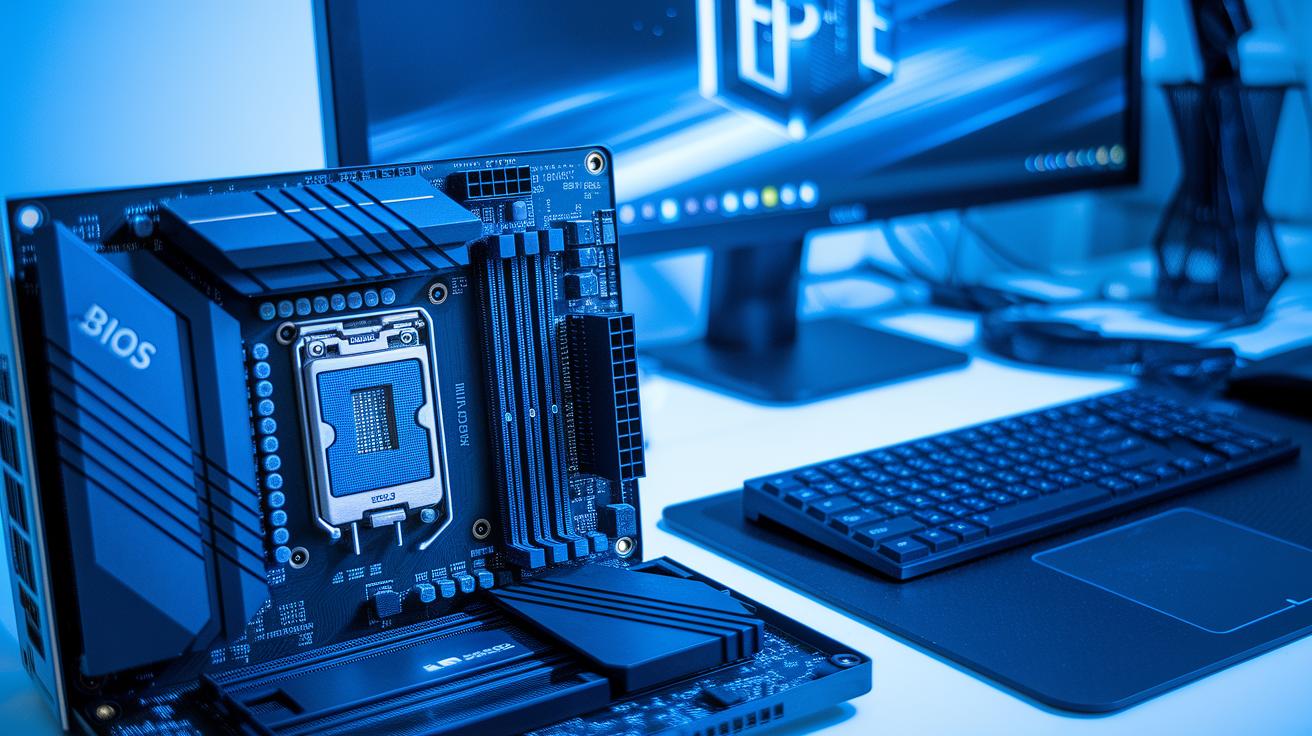
Sometimes your PC tells you it doesn't meet the specs, and when you dig in, you might see something specific is off. A common snag is when the TPM module just won't show up. This usually happens because a BIOS setting like Intel PTT or AMD fTPM is off. Ever seen a "TPM not detected" message? Just pop into your BIOS and flip on the right setting, like switching on a hidden feature in your favorite game.
Another hiccup you might run into is old firmware messing up the RAM speeds. When your PC starts acting slow or glitchy, it can help to check your motherboard maker’s site for a firmware update. And don’t forget to look over your power cables, if the GPU isn’t getting enough juice, it won’t start. Plus, issues like using an unsupported CPU or mismatched RAM sticks can even stop your PC from booting up at all.
Here are a few quick steps to try:
- Verify your BIOS settings for TPM options (Intel PTT or AMD fTPM)
- Update your firmware so it works well with the current RAM speeds
- Check that all power cables are snugly connected for key parts like the GPU
- Double-check that your CPU and RAM (DIMMs) are compatible
A solid, step-by-step build check can help you catch these hiccups early, so your upgrade feels as smooth as nailing the perfect game combo.
Deciding on Upgrades and Future-Proofing Your PC
Before you dive into new gear, make sure your system meets the basics. Now it’s time to choose: upgrade one part, overhaul everything, or just hang tight for a bit. Think of it like deciding between a sudden power-up or swapping out your entire team mid-game.
Here's a cool fact: some gamers have seriously boosted performance just by switching out their graphics card, all while keeping a strong base that makes their rig feel fresh, without breaking the bank. It’s all about weighing your performance needs against your budget.
Keep an eye on up-and-coming standards like new PCIe lanes, DDR5 memory, and modular power supplies. These upgrades not only speed things up and make your system more reliable today, but they also set you up for smoother upgrades in the future. Planning ahead can save you from pricey overhauls later on.
So ask yourself: Will a few tweaks give you the best boost, or is it time for a whole new setup? Check your current needs, compare your system's benchmarks with what modern parts can do, and let that guide your move. That way, every upgrade you make counts toward a tougher, future-proof PC.
Final Words
in the action, we explored how to check if your rig meets the hardware and security marks for gaming. We talked through using simple tools to see if your system parts match and how to tweak settings when things misfire. Breaking it down helped you see the steps from basic checks to upgrades. Keeping pc compatibility on point means you can boost performance and enjoy smoother play. Keep these tips in mind, and your setup will always be ready for new wins.
FAQ
What is a PC compatibility test?
A PC compatibility test checks if your system meets key specs like CPU, RAM, storage, TPM, and Secure Boot, helping you know if your hardware supports new upgrades or software.
What does an online PC compatibility checker do?
An online PC compatibility checker scans your system’s details and compares them with software or hardware requirements so you can see if upgrades or new installations will work well.
How does a PC compatibility tool work?
A PC compatibility tool pulls up details about your components, then matches that info against recommended standards, letting you decide if your build needs upgrades or tweaks.
What is PC compatibility mode used for?
PC compatibility mode lets older software run on newer systems by mimicking a previous environment, so legacy programs continue to work without hiccups.
How can I check PC compatibility for gaming?
Checking PC compatibility for gaming involves verifying that your hardware—like CPU, GPU, and RAM—meets game requirements, ensuring smooth gameplay and fewer performance issues.
What are PC compatibility reddit threads about?
PC compatibility reddit threads share real user tips and tool recommendations on system checks and upgrades, giving insights from gamers tackling similar system challenges.
How does a PC build compatibility checker work?
A PC build compatibility checker compares your planned hardware parts, such as CPU, motherboard, and power supply, to make sure all components can work together without issues.
sildenafil commercial name
sildenafil commercial name
revatio vs sildenafil
revatio vs sildenafil
cenforce 200mg sildenafil pills
cenforce 200mg sildenafil pills
2.5 cialis daily
2.5 cialis daily
topiramate moa obesity
topiramate moa obesity
ozempic and xenical
ozempic and xenical
terbinafine essential information
terbinafine essential information
terbinafine dosage for fungal infections
terbinafine dosage for fungal infections
ketoconazole shampoo for flaky scalp
ketoconazole shampoo for flaky scalp
terbinafine side effects breakdown
terbinafine side effects breakdown
terbinafine nail fungus essential info
terbinafine nail fungus essential info
ivermectin mechanism clinical
ivermectin mechanism clinical
minoxidil support answers
minoxidil support answers
minoxidil foam vs liquid clinical insights
minoxidil foam vs liquid clinical insights
minoxidil women’s evidence
minoxidil women’s evidence
vardenafil hypotension contraindications
vardenafil hypotension contraindications
orlistat food influence
orlistat food influence
insurance coverage evidence
insurance coverage evidence
augmentin vs amoxicillin drawbacks
augmentin vs amoxicillin drawbacks
amoxicillin and birth control
amoxicillin and birth control
Tmax and Absorption
Tmax and Absorption
Onset Delay Knowledge Base
Onset Delay Knowledge Base
sildenafil health information
sildenafil health information
different types of clindamycin
different types of clindamycin