


Ever wonder if your gaming setup is holding you back? Picture your desk with two screens lighting up your space so you can keep an eye on game stats, chat with friends, and watch streams all at once.
Top gamers swear by an extra monitor for a real boost in performance. This guide ditches the guesswork and walks you through setting up your dual monitor battle station. We cover simple hardware checks, picking the right screen for your play style, and safe setup tips to help you jump into faster, clearer gameplay.
Ready to level up your gaming experience?
Complete Dual Monitor Gaming Station Setup Guide
Dual screens give you a wider view, letting you keep game stats, chat, and streaming windows open at the same time. It’s like having an extra boost for that immersive gaming vibe. Fun fact: many top players once spent hours tweaking small hardware details to snag that extra edge. So, first up, check if your graphics card can handle two monitors. Try out GPU-Z, it’s a handy tool to make sure your card is ready before you invest.
Before you get started, make sure to power off your PC or laptop to avoid any electrical slip-ups. Next, pick monitors that match or work well together. A 24" to 32" screen with Full HD to Ultra HD resolution is ideal, especially if you’re after a smooth 144Hz or 240Hz refresh rate for fast-paced battles. And remember, each port, HDMI, DisplayPort, USB-C, comes with its own perks, so verify that your graphics card supports the cable you need.
Now, plug in both monitors and fire up your system. Open your display settings on Windows, macOS, or Linux to arrange the screens, set the right resolutions, and choose the primary display for your game. Following these steps carefully sets you up for a smooth and visually appealing gaming experience.
With all your gear connected, you're ready to maximize multitasking and boost your gameplay. Updated on August 29, 2024, this guide is your go-to for the latest dual monitor setup tips.
Choosing Monitors and Hardware for Your Dual Monitor Gaming Station
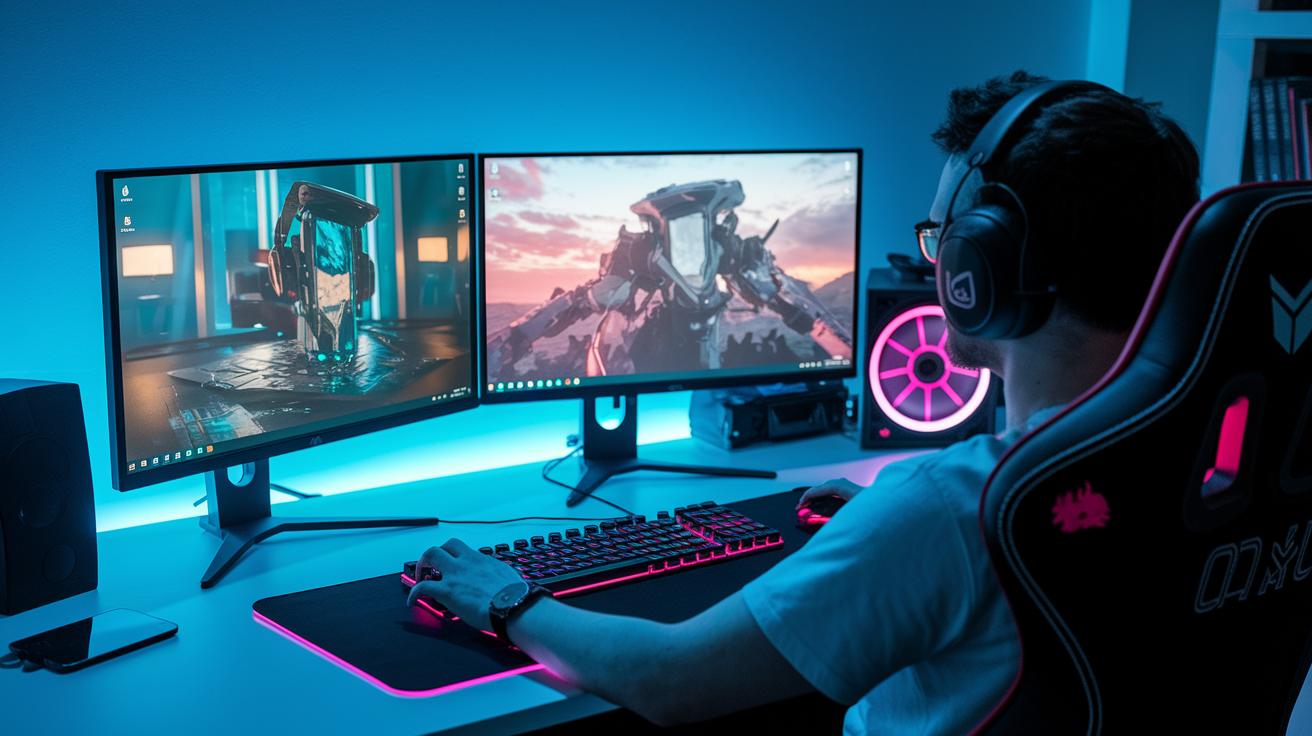
If you're setting up a dual monitor gaming station, the right gear can turn your desk into an epic command center. It might sound wild, but a balanced setup can turn a regular game into a blast of crisp visuals and smooth speed.
Monitors usually come in sizes from 24 inches to 32 inches. That means you can choose from a sharp 1080p display or even an awesome 4K one that brings every game detail to life. For fast games, a 60Hz refresh rate is usually fine, but many gamers prefer 144Hz or even 240Hz to catch each frame perfectly.
Panel types also play a big role. TN panels are quick and cheap, while IPS and VA panels show richer colors and offer wider views. And don't forget to check your graphics card outputs, whether it's HDMI, DisplayPort, or USB-C, since older cards might only handle one monitor at a time. For instance, the Arzopa Z1FC Grey Portable Monitor has a 16.1-inch screen with a 144Hz refresh rate, while the Arzopa Z1RC Portable Monitor offers a 2.5K QHD display for those who crave extra visual detail.
Also, think about ergonomics and space. Your desk or monitor mount needs to comfortably support both screens. Look into quality stands and mounts that keep cables neat and secure while giving you the stability you need. Compare specs like brightness, response time, and color accuracy so your dual monitor setup is as comfy as it is high-performing.
Cable Organization and Connectivity for Dual Monitor Gaming Station
Getting your cables sorted is the first step to an awesome dual monitor setup. It’s not just about performance, it’s about keeping your space clean and game-ready. Most setups use HDMI for easy compatibility, but if you need higher refresh rates, DisplayPort is your go-to. And if you’re looking for versatility, USB-C can handle both video and power. Imagine your desk turning into a spaghetti mess, nobody wants that!
Planning your cable paths isn’t all about looks, though tidy wiring also means smoother gaming. Before you plug anything in, think about your power outlets and even grab a surge protector. This extra planning keeps your gear safe from surprise voltage spikes and avoids pesky disconnects right in the heat of a session.
Here are some quick pointers:
- Secure cables with trustworthy cable ties.
- Bundle them neatly using flexible sleeves.
- Run cables behind or under your desk.
- Use cable channels to give a clean, streamlined look.
- Map out your cable paths with a simple wiring plan.
- Protect your gear with a surge protector.
Operating System Configuration for Dual Monitor Gaming Station
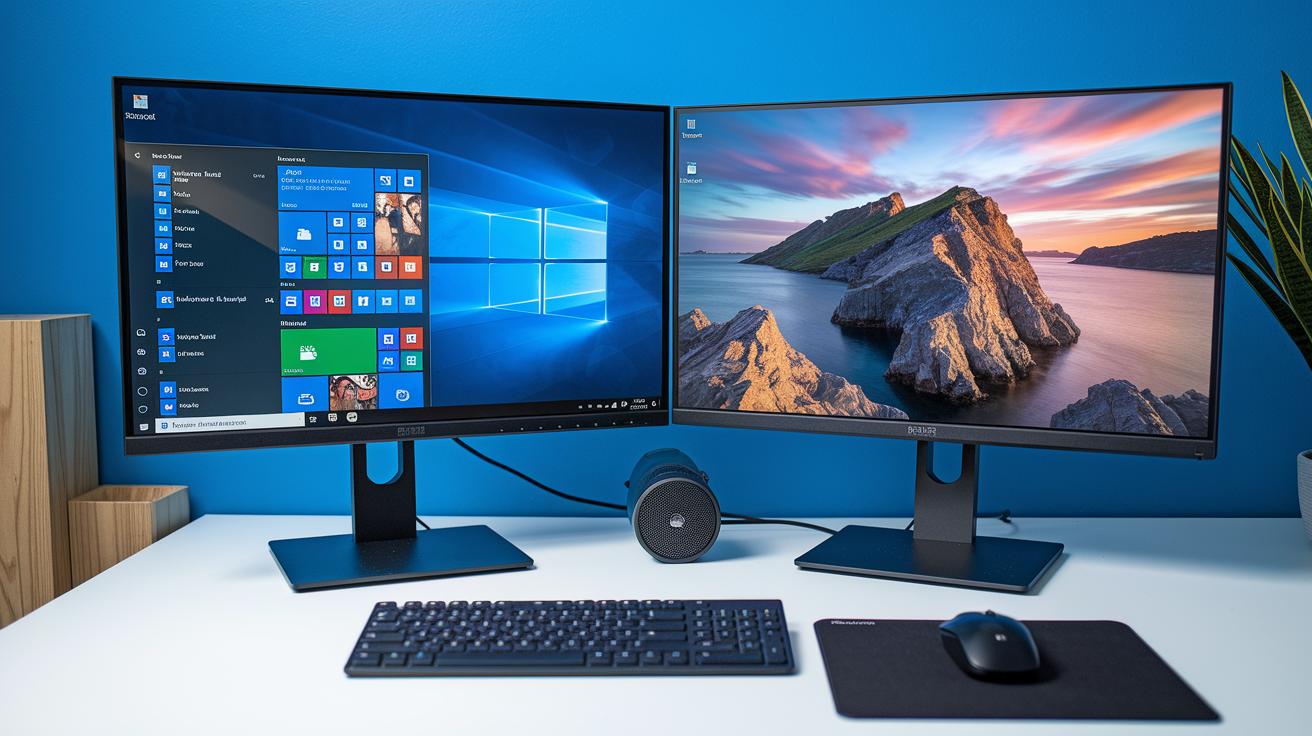
Windows Configuration
Start by opening Display Settings from your Start menu or simply right-clicking on your desktop. You'll see thumbnails for each connected screen, almost like a mini-map of your gaming setup. Drag the icons around until they match how your monitors are set up in real life. Pick your main monitor by selecting the one that will show your game windows and key tasks. If you're on Windows 11, you can even decide whether the taskbar shows up on just your main display or stretches across both screens. And hey, don’t forget the handy Win + P shortcut, it’s perfect when you need to switch display modes or quickly add more room for your game hustle.
macOS Configuration
Head over to System Preferences and click on Displays. You'll see a screen layout where you can drag the monitors to line them up just like your desk. Set your main display by moving that little white menu bar to your favorite monitor. You can also tweak the scaling options to keep everything clear and smooth during those intense gaming sessions. The drag-and-drop design here makes it a breeze to either mirror your displays or stretch out your workspace for maximum game action.
Linux Configuration
For Linux users, pop open your terminal and use the xrandr commands to get everything in line. A quick example:
xrandr –output HDMI-1 –mode 1920×1080 –right-of DP-1
This command places your monitors side-by-side while setting a crisp 1920×1080 resolution. Tweak the mode and position values as needed for your setup. With these commands, you can fine-tune your display arrangement so that your games and apps look sharp and run smoothly across multiple screens.
Optimizing Gaming Performance on Your Dual Monitor Gaming Station
GPU Control Panel Adjustments
Start by right-clicking on your desktop and pop open your GPU control panel. Look for the display settings where you can see both screens. Set each monitor’s refresh rate to match its specs, if one shows 144Hz, switch it up to 144Hz. This helps smooth out motion and cuts down on screen tearing during play.
Then, hunt for the setting to enable adaptive sync (like NVIDIA’s G-SYNC or AMD’s FreeSync). This makes sure your game runs smoothly, even when things get busy on screen. Think of it like gearing up before a big raid, setting up your performance profile with the best color balance and minimal input lag. It’s all about getting responsive play and boosting frame rates to match your system’s strength.
In-Game Display Settings
Inside your game’s settings, start with the resolution. Make sure both monitors run at their native resolution so things look sharp and clear. Next, set a frame rate cap that matches your monitors’ refresh rates. Even if your graphics card can push higher numbers, sometimes using a lower cap saves resources, just like picking the right weapon for your mission.
Now, adjust the graphical presets like texture details and shadow quality so you get a good mix of visuals and smooth performance. Tinker with resolution scaling, too; this lets you change the game’s render size without messing up your monitor's native resolution. These tweaks can be the difference between choppy play and buttery-smooth action, keeping your dual monitor setup running at its best.
Ergonomic Positioning and Workspace Layout for Dual Monitor Gaming Station
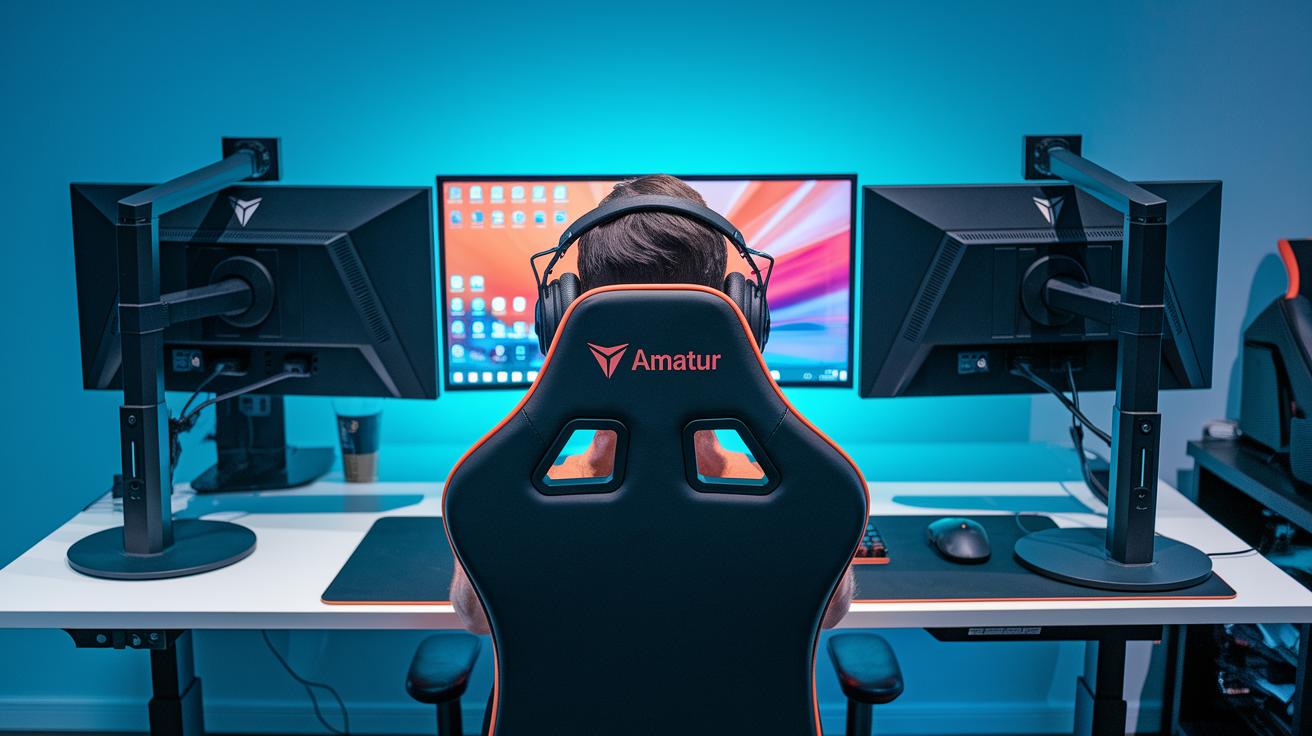
Getting your dual monitors set at eye level is a game-changer for staying comfy during those long gaming sessions. Place both screens at the same height and tilt them in slightly, around 10–20°, so you can see everything without straining your neck. This kind of setup helps you avoid awkward head turns and keeps your posture nice and relaxed. And if you like mixing things up, a sit-stand desk can let you change positions and stretch those muscles throughout your day.
Next, organizing your desk can seriously boost your gaming and overall efficiency. Make sure you have enough space to comfortably fit both monitors along with all your gear. A neat trick is to add some ambient or LED accent lighting behind your screens. It softens the glare and eases eye fatigue while adding a cool, immersive vibe to your setup. Tweak the lighting to match your room so you can stay focused on both your game and a tidy workspace.
Troubleshooting Your Dual Monitor Gaming Station
If your monitor isn’t showing up, first double-check your cables. Sometimes a loose plug can mess with your signal. Try swapping cables or plugging into a different spot on your graphics card to see if that fixes it. And hey, updating your GPU drivers might just squash pesky bugs causing the issue. These quick fixes usually get you back into your game in no time.
When your screens act out with mismatched resolutions or refresh rates, head into your computer and graphics card settings. Set both monitors to the same values. If you’re seeing latency or annoying flicker, consider using better shielded cables, turning on V-Sync or adaptive sync, and updating any firmware or drivers. These tweaks often smooth things out so you can keep gaming without interruption.
| Issue | Solution |
|---|---|
| Monitor not detected | Check the cables, try different ports, and update your GPU drivers |
| Mismatched resolutions/refresh rates | Set both monitors to the same settings in OS and GPU control panel |
| Latency or flickering | Use high-quality shielded cables, enable V-Sync/adaptive sync, and update firmware/drivers |
| General connection issues | Restart your system and try a simpler setup |
Final Words
in the action, this guide showed every step to set up your dual monitor gaming station. We broke down hardware selection, cable organization, OS configurations, and even performance tweaks to keep your gameplay smooth.
The instructions helped you tackle monitor pairing, optimal refresh rates, and ergonomic layouts. Gear up for more seamless gaming sessions, and enjoy the benefits of your dual monitor setup as new challenges come your way. Keep experimenting and leveling up your station for even more fun.
FAQ
What is the best dual monitor setup for gaming?
The best dual monitor gaming setup means pairing matching screens with high refresh rates to widen your gaming view. It boosts multitasking and creates an immersive gameplay experience.
How do I set up dual monitors for gaming and streaming and connect them to one computer?
The dual monitor setup process for gaming and streaming involves connecting both screens using available GPU ports and configuring your operating system display settings for extended or mirrored views.
What is the price range for a 2 monitor gaming setup?
The price range for a 2 monitor gaming setup varies based on monitor specifications, desk accessories, and cable management options. Budget builds can be affordable while premium gear tends to be pricier.
What does community feedback on Reddit suggest about dual monitor gaming setups?
Reddit feedback suggests dual monitor gaming setups work best when both screens match in resolution and refresh rates, with focus on ergonomic desk arrangements and tidy cable layouts for smooth gaming sessions.
What is a multi monitor gaming setup and how does it differ from dual monitor setups?
A multi monitor gaming setup means using more than two screens to expand visual workspace and multitasking ability. It differs from dual setups by offering extra display space and increased flexibility.
What should I consider when choosing a dual monitor stand or gaming desk?
The dual monitor stand or gaming desk choice should deliver sturdy support, easy adjustability, and ample space. It also helps keep cables organized and maintains comfortable monitor positioning during long sessions.