


Ever thought building your own PC might be tougher than it looks? Think again.
With a clear checklist, every step feels like unlocking a new level in your favorite game. You start by gathering your tools and move on to setting up the software, turning the process into easy, bite-sized tasks.
Stick around as we walk you through matching parts and assembling your system with ease. Trust me, you got this, and it’s simpler than you’d expect.
Essential Steps in a PC Build Guide
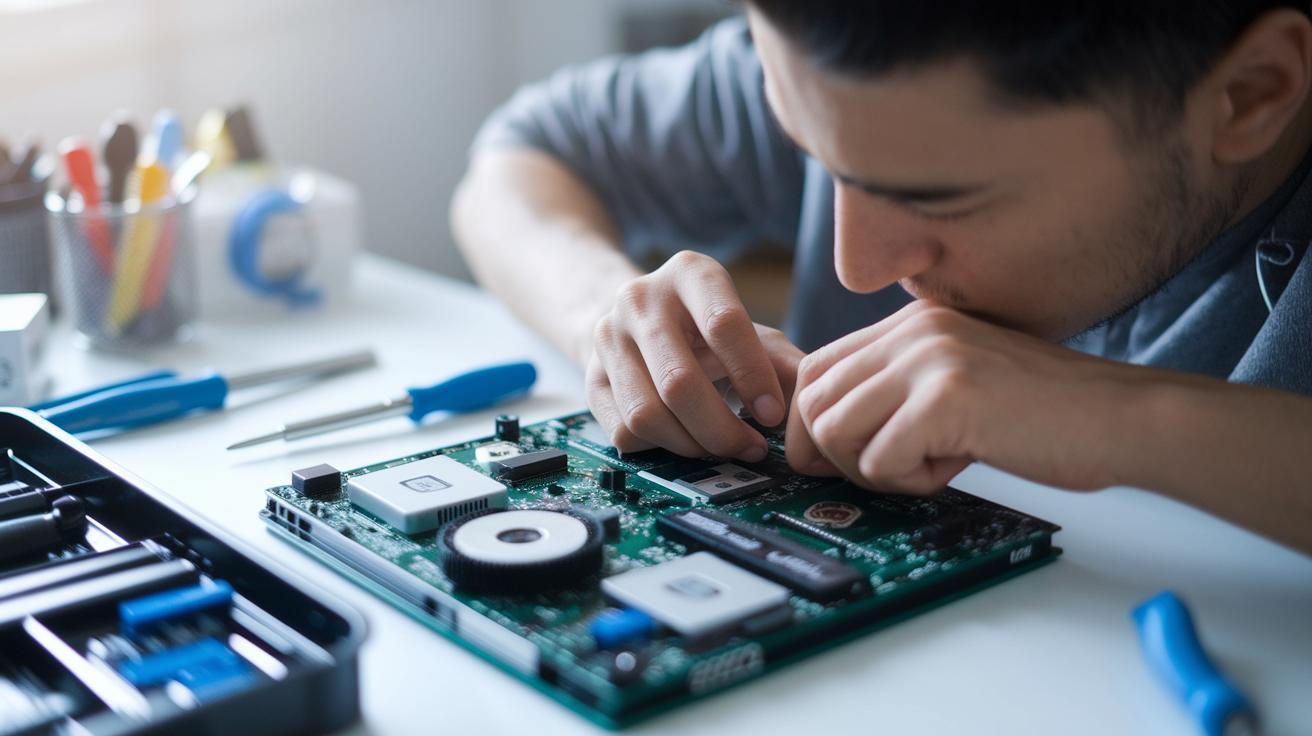
Building your own PC can be a blast if you know what to do. This handy checklist breaks everything down into quick, simple tasks, just like leveling up in your favorite game.
- Tool prep
- CPU installation
- Memory & M.2 SSD
- Motherboard mounting
- Case cabling
- Cooler placement
- PSU mounting
- GPU installation
- Fan setup
- Cable management
- BIOS configuration
- OS install
These steps cover everything you need, from grabbing the right tools to firing up your system and installing the OS. Each tip keeps it real and to the point, so you can easily follow along during your build session. For more in-depth details, check out the Step-by-Step PC Build Assembly Process section.
Component Selection and Compatibility in PC Builds

When you're building your own PC, picking the right parts is a lot like assembling the ultimate team. First, make sure your CPU and motherboard match perfectly. For example, if you're using an Intel 11th–13th Gen Core or an AMD Ryzen 5000/7000 series chip, double-check that your motherboard socket fits, kind of like finding the right key for a lock.
Next up is memory, which is super important. You can go with either DDR4 or DDR5, and cool features like Intel’s XMP or AMD’s EXPO profiles can boost performance. Think of it as grabbing a power-up in your favorite game. And when it comes to storage, M.2 SSDs with PCIe 4.0 are your best bet for lightning-fast data access.
Now, let’s talk style and efficiency. Extras like Corsair SP120 RGB Elite fans or an internal USB hub add a fun twist to your build while making sure everything runs smoothly. And of course, you can’t forget the GPU. A solid pick is the PNY NVIDIA GeForce RTX 4070 Ti, a three-slot card that’s great for both heavy gaming and creative tasks.
Below is a quick compatibility checklist to help you match up all your components:
| Component | Compatibility Factor | Example |
|---|---|---|
| CPU | Socket match (Intel 11th–13th, AMD Ryzen 5000/7000) | Intel Core i7-12700K |
| Motherboard | Socket type, chipset support | ASUS TUF Gaming |
| Memory | DDR4/DDR5, XMP/EXPO profiles | 16GB DDR5 kit |
| Storage | M.2 SSD with PCIe 4.0 | Samsung 980 Pro |
| GPU | Physical slot and power requirements | PNY NVIDIA GeForce RTX 4070 Ti |
That’s your quick checklist. It helps you pair all your parts the right way. For a deeper dive into putting these pieces together, check out the Step-by-Step PC Build Assembly Process section.
Budgeting Strategies for Your PC Build

Building your own gaming or productivity rig? Budgeting is your best friend. Think of it like picking a difficulty level in your favorite game, where you start with a basic $500 office PC and work your way up to a $10,000 premium creator machine. You have plenty of choices in between, like rigs around $750, $1,000, $1,500, $2,000, $2,500, $3,000, and even $5,000. Each budget level comes with its own set of challenges and rewards.
Let's break it down with some real-world examples. Imagine a $600 office build that might include an AMD Ryzen 5 7600 around $185. Now, if you're aiming for a powerhouse setup, you could grab a component like the AMD Threadripper 9970X for about $2,500, which can really push your rig into high-performance territory. Sometimes, just one expensive part can bump up the overall cost, kind of like that secret level in a game that unlocks bonus challenges.
And here's a tip: use online rig expense calculators. These tools let you figure out things like how many watts you need for your PSU and help you plan your spending on each component. Compare different builds, tweak your choices, and you'll find the sweet spot between cost and performance. Experiment, adjust, and keep your expenses in check while you build the machine that’s just right for you.
Tools and Workspace Prep for PC Builds

Imagine you're gearing up for an epic gaming tournament. Clear a flat, dust-free spot where you can work like you're setting the stage for your next big win. Keep your tools within reach and create a safe zone, think of your anti-static wrist strap as your personal shield. Make sure there's plenty of light so you can spot every cable and screw, just like hunting for hidden treasures in your favorite level. A clean, organized space makes building feel smooth and fun.
Plan your build like you’re mapping out a co-op mission. Jump on websites like PCPartPicker to make sure all your parts get along and to check if your power supply is up for the task. Buyer’s guides give extra tips on choosing the right CPU coolers, cases, GPUs, and motherboards, they're like that friend who reminds you to double-check your loadout before the final boss fight. Keep things tidy, plan carefully, and build with the confident spirit of a true champion.
PC Build Guide: Build with Confidence
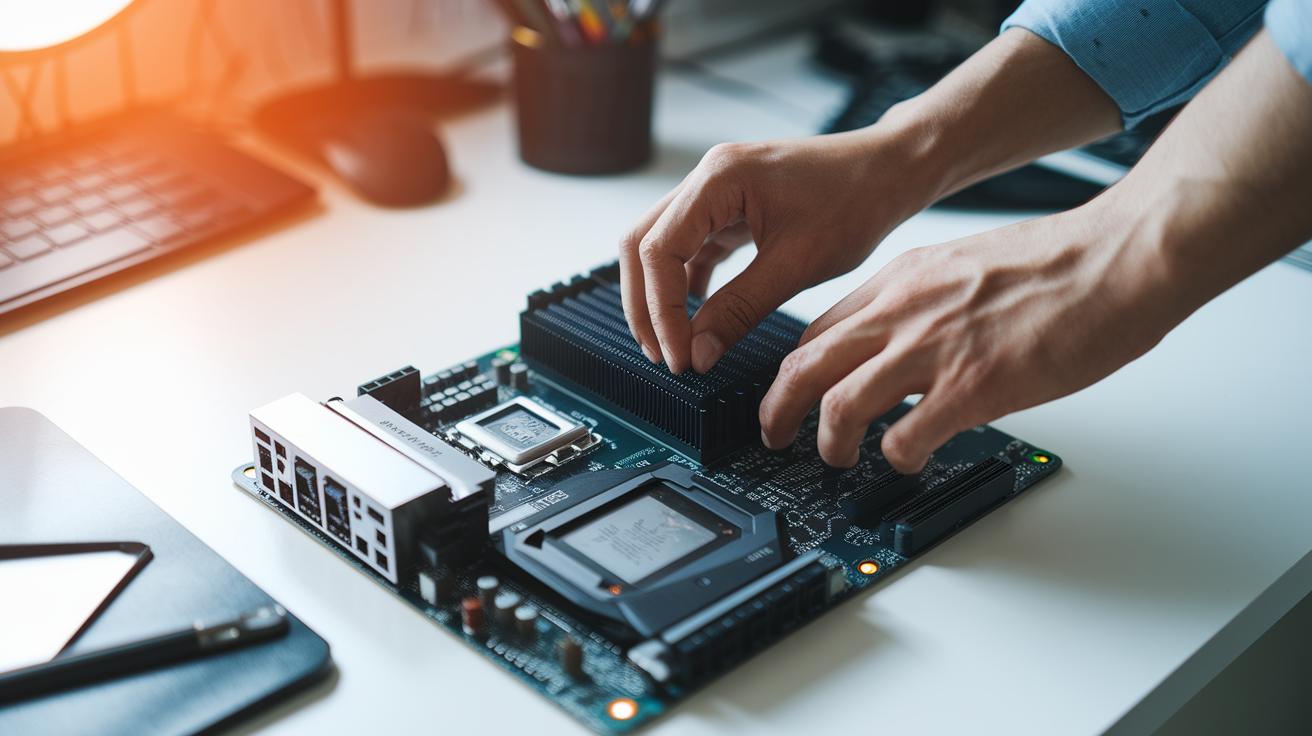
Ready to dive into building your PC? This guide breaks down the process into easy steps, so you can set up your rig like you’re starting a fun new game. Each part is explained in simple, clear steps to help you put everything together for a smooth, fast system.
Install CPU and Cooler
First, line up your CPU with the socket on the motherboard, think of it as matching a key to a lock. Next, dab a tiny bit of thermal paste (about the size of a pea) on top of the CPU. It’s just enough to cover it without going over, like setting up a well-timed move in your favorite game. Then, gently place your cooler on top and secure it by following the instructions. Picture it like nailing that perfect jump in a platformer.
Install RAM and Storage
Now, pick the right slots for your memory, whether it’s DDR4 or DDR5, and press them in until you hear a click. This click is like the satisfying sound of locking in a bonus level. When it comes to installing your M.2 or SATA drive, sometimes it helps to set it up outside the case at first so you can see things line up. It's a bit like picking out your gear for a big boss fight, accuracy is key. Make sure every piece clicks in place, and you’re good to go.
Mount Motherboard in the Case
Next step: place your motherboard inside the case. Align it with the standoffs, which are like the supports in a mini base camp. Check each screw hole to be sure they match perfectly, and then secure it with the screws provided. It’s like setting up a safe base before you jump into an epic mission.
Connect PSU and Case Cables
Now connect your power from the PSU. Use the 24-pin and EPS cables along with any SATA power lines for your drives. Don’t forget the front-panel connectors like USB ports, audio jacks, and even extra headers for RGB or USB if you have them. Think of this step as putting together a puzzle, where every cable finds its right spot.
Install GPU and Case Fans
After that, pop your GPU into its PCIe slot on the motherboard. Secure it with screws so it sits snugly without wobbling. Then, add your case fans by plugging them into the right headers on the board. It’s a bit like assembling your dream team before the big game, every part has to work perfectly.
Final Cable Management, BIOS Setup and OS Install
To wrap it up, tidy all your cables with clips or ties so your build stays clean and cool. Power on your system and check that it passes the POST (a quick test your PC does before finishing its startup). Next, jump into the BIOS to enable special settings like memory profiles (XMP or EXPO) to boost performance. Finally, install your operating system, and you’re all set to run any game or software you like. Enjoy the ride!
Troubleshooting Common PC Build Issues
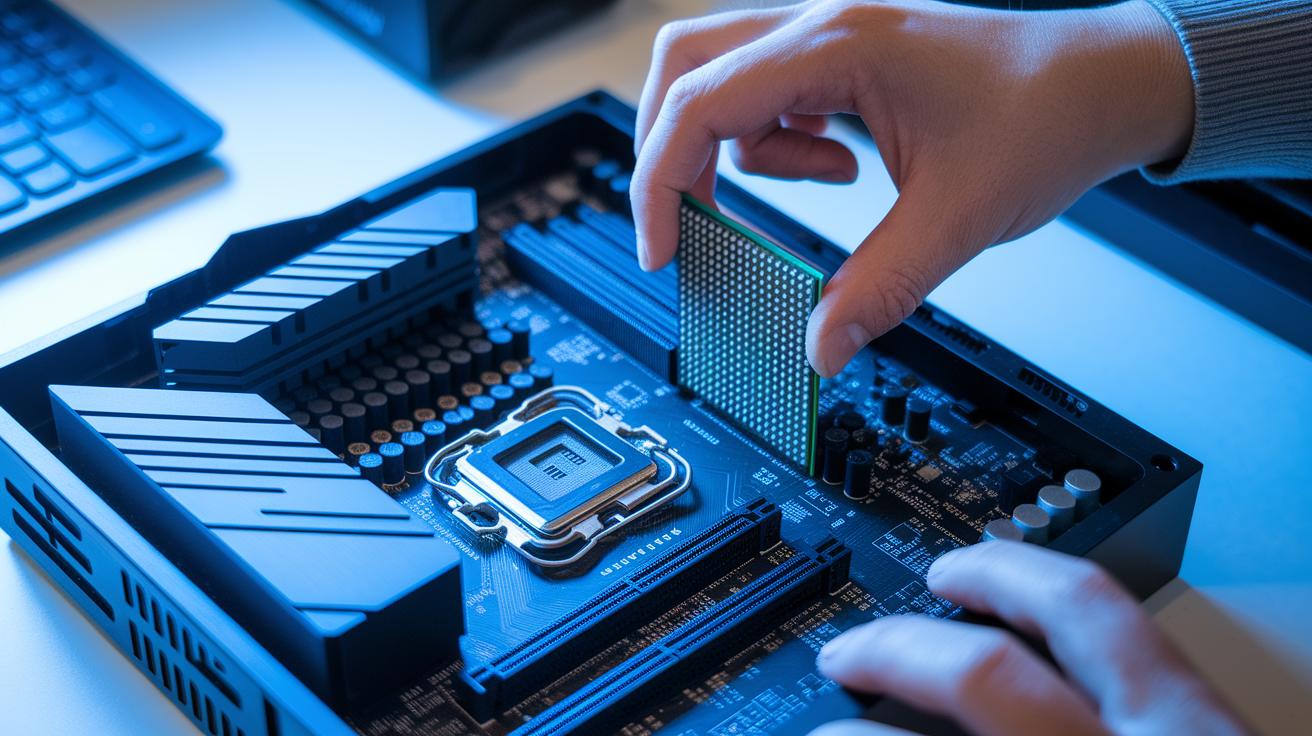
If your system fails the POST test, check that your CPU is seated properly. For setups using AMD AM4/AM5, Threadripper, or Intel Core X-Series, you might need a different way of installing if the board isn’t reading the CPU right. Reseat your CPU and double-check all connections, just like making sure you’ve lined up an important game move.
Memory errors can trigger beep codes or stop your system from POSTing at all. Often, the RAM might not be fully locked into its slot or an M.2 SSD might not show up in the BIOS. Make sure every stick of memory clicks in place and that your storage cables are securely attached, much like getting your gaming gear ready for a big level.
A missing GPU might mean loose PCIe connectors or a power supply that isn’t giving enough juice. Check that your GPU is fully inserted in its slot and that your PSU is strong enough to meet your system’s needs. Tools like PCPartPicker can help you confirm if you’re using the right wattage, so you can tweak things as needed.
If issues persist, reset your BIOS settings and turn on memory profiles like XMP or EXPO. Updating the firmware for both your motherboard and GPU can also clear up lingering errors, letting your build boot up smoothly and run reliably, just like prepping for a long, fun gaming session.
Performance Optimization and BIOS Tuning for PC Builds

Start by diving into your BIOS settings to squeeze the best out of your build. Turn on Intel XMP or AMD EXPO to kick up the memory clocks on DDR4 or DDR5 sticks, giving your system a neat boost. Don’t forget to update your BIOS too, it helps the motherboard run smoother and supports newer CPUs like Intel 13th Gen or AMD Ryzen 7000 series. It’s kinda like tuning up your car before a big race, making sure every part runs in sync so you avoid those annoying glitches.
Then, move on to tweaking your drivers and OS settings. Installing the latest GPU drivers can smooth out your graphics and ramp up game performance, while switching your Windows power plan can help balance energy use with some extra oomph. Adjust your fan curves so your cooling kicks in right when temps rise, keeping everything nicely chill. These small tweaks are just like fine-tuning a high-performance rig, ensuring everything stays cool and fast so you can game or work without any hiccups.
Upgrades and Future-Proofing Your PC Build

Think about your rig like it’s your main game character, you want it ready for every level. Pick a motherboard with extra M.2 slots so you can easily add more speedy storage later. And hey, look for one that can switch from DDR4 to DDR5 when things start getting intense. Having PCIe 4.0 slots is a big win, keeping your graphics and expansion cards ready for the latest challenges. It’s like saving extra inventory slots for your best loot.
Next, go for parts that make swapping upgrades a breeze. Modular power supplies and motherboards built to handle future CPU choices mean you won’t be stuck with a rig that can’t level up. Plus, when you add cool extras like Corsair SP120 RGB Elite fans or built-in USB hubs, your build not only performs great, it looks awesome too.
Final Words
in the action, this article walks you through every step from tool prep to OS install. It covers building your PC piece by piece, from selecting the right parts to budgeting, planning your workspace, and troubleshooting common issues.
We break down each key phase so you can tackle your build with confidence. Keep this pc build guide handy, and enjoy the awesome feeling of a job well done!
FAQ
Q: What can I find in a PC build guide on Reddit?
A: The PC build guide Reddit features user discussions, parts recommendations, and in-depth build experiences that help you explore component choices and assembly tips to optimize your custom rig.
Q: How does a gaming PC build guide differ from other guides?
A: The gaming PC build guide focuses on performance tuning, eye-catching visuals, and streamlined setups that meet gaming demands, helping you create a rig that delivers smooth gameplay.
Q: What does a PC build guide on YouTube offer?
A: The PC build guide YouTube videos provide clear, step-by-step visuals and engaging commentary that make the assembly process easier to follow—great for both beginners and skilled builders.
Q: What insights does a PC build guide from LTT provide?
A: The PC build guide LTT gives expert insights, practical tips, and detailed visuals with a fun style that simplifies the build steps, making it easier to assemble a high-performance system.
Q: How does a step-by-step PC build guide with pictures help?
A: The step-by-step PC build guide with pictures breaks down each phase of assembly visually, clarifying component setups and connections so you can confidently build and troubleshoot your rig.
Q: What information does a PC build guide PDF include?
A: The PC build guide PDF offers printable, step-by-step instructions, diagrams, and checklists that help keep your assembly process organized and accessible for offline reference.
Q: What are the benefits of using a PC build guide website?
A: The PC build guide website provides interactive content, regular updates, and detailed compatibility insights along with user reviews and tips, making it easier to plan and execute your custom build.