

Ever wonder how some players keep scoring wins without any extra help? Maybe it's time to check your gear. Even tiny tweaks can make a big difference when every single millisecond counts. Changing things like your display, system settings, and game controls might just give you that extra boost. In this post, we'll show you a few smart changes that can transform your setup into a lean, mean gaming machine. Ready to level up and snag those quick wins that really add up?
Core Strategies to Optimize Gaming Gear for Competitive Play
When you’re in the heat of ranked matches, tweaking your hardware and software can be a total game changer. Every millisecond counts and even small adjustments can take you from average to elite play. Try updating your GPU drivers from well-known providers for the latest bug fixes and speed boosts. For example, lowering your game’s graphic settings from ultra to medium can cut down lag so you can react faster.
Also, giving your system a little extra room by shutting down background apps means more power for the game when you need it most. Here are some easy wins:
- Update your drivers regularly for smoother, high frame rates.
- Change your in-game settings so you get a clear view but still hit high FPS.
- Tweak your Windows settings to get rid of unnecessary processes.
- Adjust your mouse or controller sensitivity for quicker responses.
Mixing these tweaks not only smooths out annoying delays but can even mean the difference between landing that perfect headshot or missing your shot altogether. With a few thoughtful adjustments to both your gear and system software, your rig can perform like a finely tuned machine, ready for every crucial match.
Elite Hardware Tuning for Competitive Play
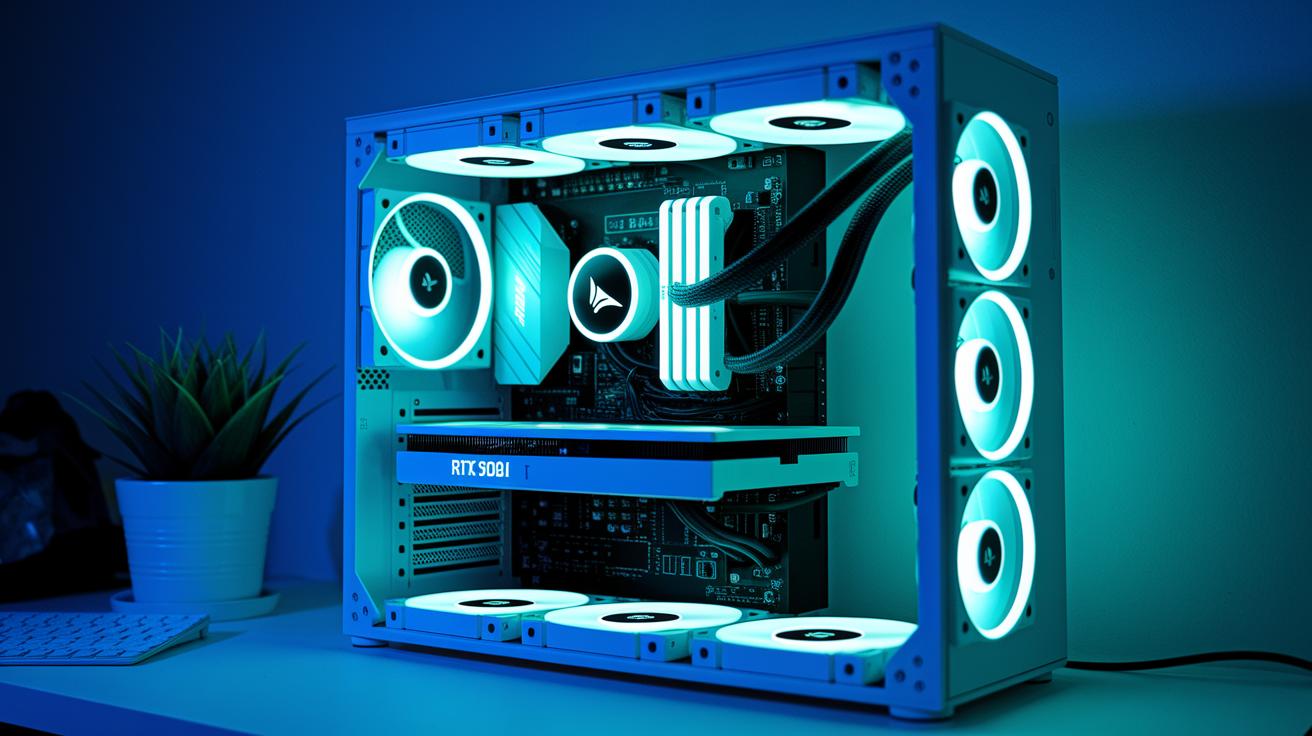
When every millisecond counts, your setup needs to be rock solid. Start by choosing a GPU that pumps out high frame rates, whether you're eyeing an NVIDIA RTX series from the 3050 up to the 5090 or an AMD card like the RX 7700 to RX 9070. And don’t skip on low-latency RAM, think of it as your system's gear for counting every data bit, just like picking the perfect controller for a smooth win.
Keep your machine cool by setting up the right airflow. Use one or two intake fans to suck in fresh air and one exhaust fan to push out the warm air. Imagine it like the cooling boost in your favorite racing game; a well-ventilated rig keeps everything running without slowing down.
Storage matters a lot, too. Rely on an NVMe SSD or any fast storage option to chop down load times and speed up your data transfer. It’s like having a power-up that lets you jump into the action with zero delays, keeping your gameplay as slick as your best moves.
With this kind of hardware setup, you’re not just playing, you’re fine-tuning your rig to cope with the fastest plays under pressure, giving you the edge to dominate every match.
Peripheral Calibration: Mouse, Keyboard, and Audio Tuning
When every millisecond counts, your gear needs to be on point. A quality mouse set between 400 and 1600 DPI makes every move sharp and smooth, almost like lining up that perfect shot with a quick flick of your wrist.
Mechanical keyboards with low-actuation switches, around 45 g, are a real game changer. Each press registers almost instantly, giving you that seamless feeling of a well-timed combo in your favorite game. It’s all about finding that right feel, just like syncing with the beat of your go-to soundtrack.
And audio? That can seriously boost your play. With a little tweaking using equalizer presets and virtual surround, you can pick up even the quietest enemy footsteps amid the chaos. It’s like cranking up the details that really matter.
| Tip | Description |
|---|---|
| Mouse DPI | Keep it between 400 and 1600 for pinpoint accuracy |
| Keyboard | Choose mechanical keys with low-actuation switches for faster response |
| Audio | Tweak equalizer and surround settings to clearly hear in-game cues |
For more cool ideas to level up your setup, head over to Gaming Peripherals at "https://funcomputers.com?p=273". With these personal adjustments, your gear becomes an extension of your skill, ensuring every click, key press, and sound cue counts in the heat of the match.
Display Optimization for Ultra-Responsive Gameplay
When speed matters in your game, your monitor settings are a big deal. Upgrading from a 60 Hz screen to a 144, 240, or even 360 Hz display is like swapping your regular boots for super-fast ones, it really boosts your move speed and cuts down on input lag.
Tweak the contrast and brightness of your monitor to get rid of ghosting, which can make fast action look blurry and mess up your timing. Overdrive settings can help sharpen quick transitions so details stand out. Many gamers love using low-latency options like NVIDIA Reflex because they make sure every keystroke or click registers right on time.
Running your monitor at its native resolution also stops delays caused by scaling. These changes help you see every shot, sprint, and dodge with crystal clarity. It’s like the difference between a dull, blurry photo and one full of vivid details that give you a real edge in the game.
Network Configuration to Minimize Latency
When you’re in a heated match, every millisecond matters. Ditch Wi‑Fi and plug in a wired Ethernet cable instead. With a wired connection, your ping drops and you keep a rock‑solid link. I remember switching to Ethernet in one ranked game and seeing my ping plummet from 60ms to 35ms, talk about a game changer.
Tweak your router settings with Quality of Service (QoS) to put gaming data at the front of the line. This means that while you've got background downloads or streaming going on, your game still gets the spotlight. And hey, close any extra network apps that could hog your bandwidth.
You might also wanna try an ultra‑fast network adapter. It makes sure every little packet of data zooms to its target super fast.
| Setting | Effect |
|---|---|
| Wired Ethernet | Low ping and a steady connection |
| Router QoS | Puts gaming data ahead of background traffic |
Lastly, fine-tune your adapter drivers and network settings to shave off each extra millisecond. Try out low-latency connection protocols by checking your interface properties and making a few adjustments. Little tweaks like these can smooth out your gameplay and boost your competitive edge.
Ergonomic Station Improvements for Sustained Performance
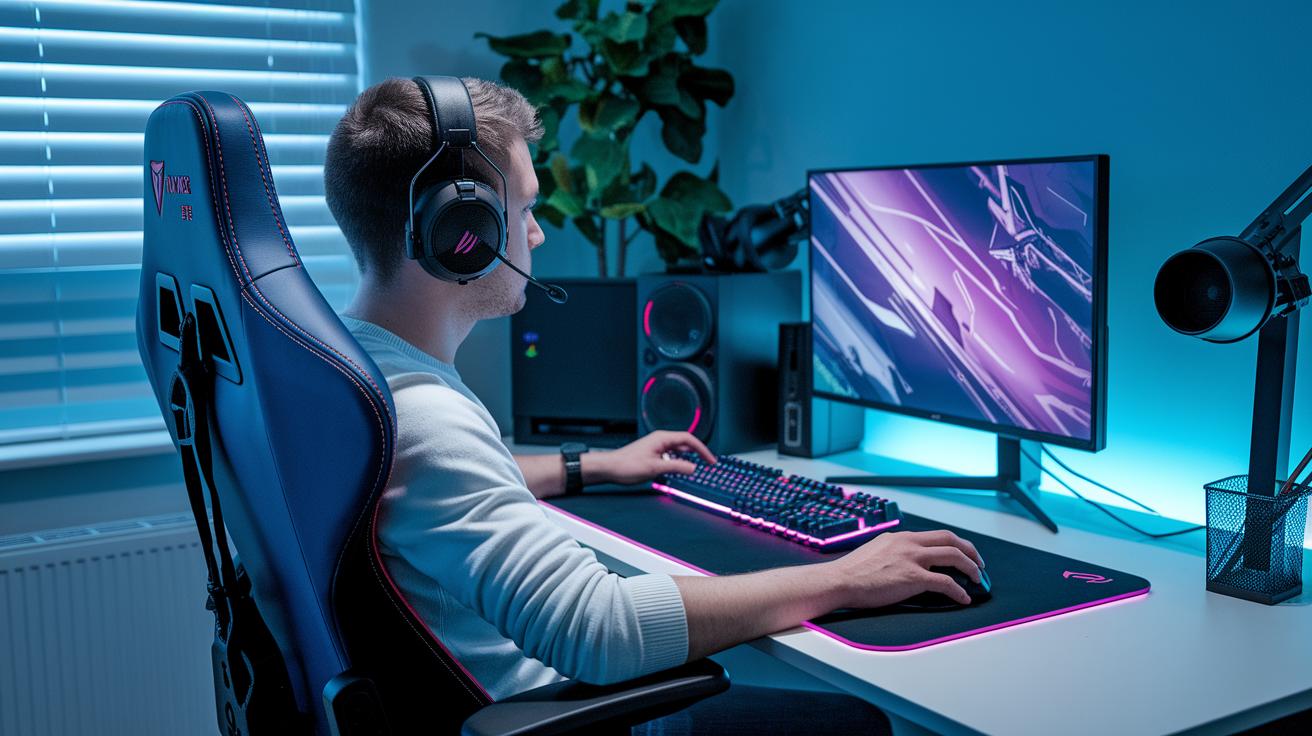
Getting your gaming setup comfy can really boost your focus during those tough sessions. A chair that adjusts in height and offers lumbar support cuts down on tiredness when you're playing for hours. Check out the Gamer Gear Gaming Chair at https://funcomputers.com?p=93 if you're hunting for a great seat. Imagine a chair that feels built just for you, like that buddy who’s always got your back.
Keeping your wrists straight is another smart move. Using a keyboard tray set at the right angle and a properly placed mouse pad means your hands stay relaxed and ready for any in-game quick move. It’s like making sure your controls work in perfect harmony, so every click feels just right.
Good desk lighting matters too. Bias lighting behind your monitor softens harsh contrasts and helps keep your eyes comfortable during long plays. Picture your setup glowing softly, just enough to keep you sharp without any annoying glare. With these simple tweaks, your gaming station becomes a solid spot for long, fun sessions.
Advanced Configuration: Firmware, Overclocking, and Software Tweaks
Updating your firmware is a smart upgrade for your gaming setup. A quick update on your motherboard, keyboard, or gaming mouse can iron out pesky bugs and boost performance, kind of like patching up glitches before the next intense match.
Overclocking your CPU and GPU is cool, but take it slow. Pushing them to go faster gives you that extra power jump, yet you need solid cooling to keep things safe. It’s like tuning a race car: you boost the speed while making sure the engine doesn’t overheat. Keep an eye on your temps like you watch your health bar during a tough boss fight, always ready to adjust if things get too hot.
Tuning tools like MSI Afterburner or vendor apps allow you to fine-tune settings, adjust voltage, set up macros, and track performance in real time. Think of these utilities as your personal cockpit dashboard, letting you keep control over every detail of your system.
- Always update your firmware to lock in stability fixes and boost performance.
- Overclock only when you have reliable cooling to avoid overheating.
- Use tuning software to tweak settings and watch your system’s performance live.
Monitoring and Maintenance for Long-Term Competitive Edge
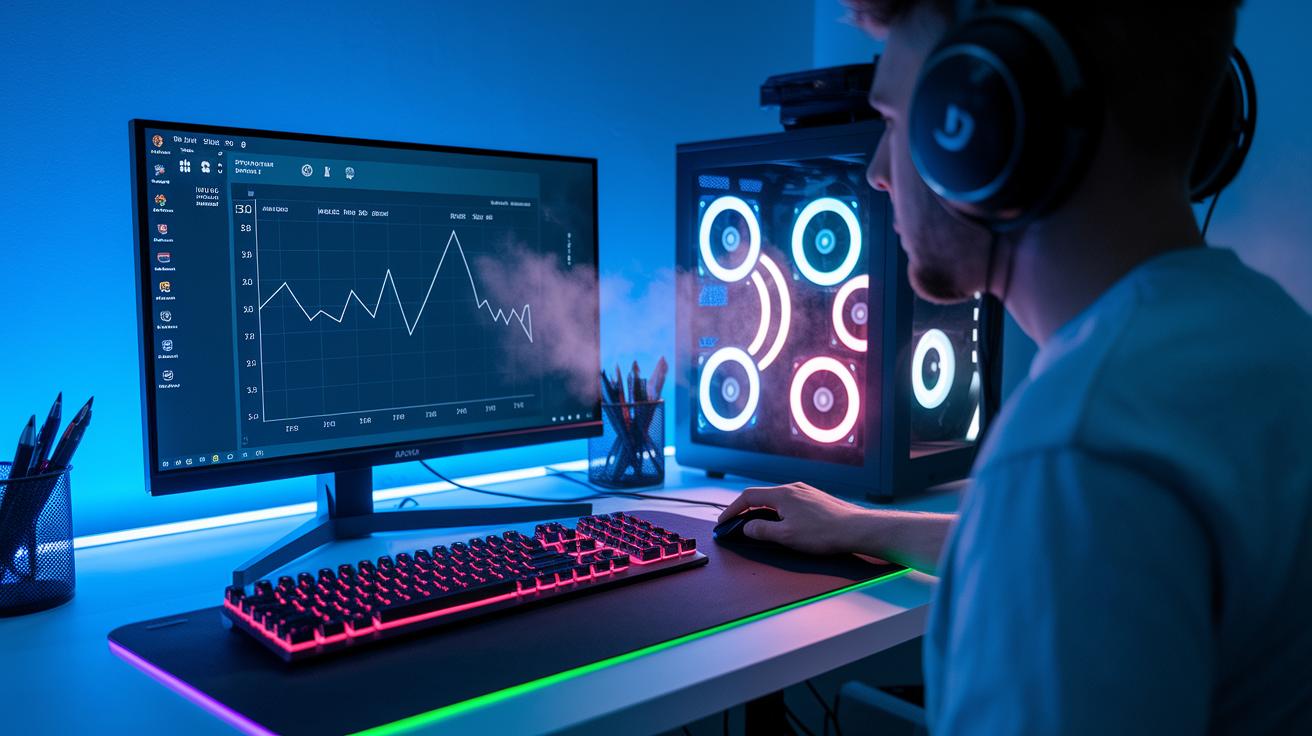
Keep your rig running like a champ by testing its performance often. Try out tools like 3DMark or CapFrameX to check FPS, latency, and frame-time consistency. Ever noticed how a quick benchmark can uncover hidden lags, kind of like finding a secret level in your favorite game? It’s a cool way to spot issues before they mess with your play.
Regular check-ups are a must. Dust off your system and update your drivers so everything stays smooth during those heated matches. Think of it like fine-tuning your mouse or keyboard, small tweaks can make a big difference.
You can also set up your game profiles to switch automatically with programs like GPU Tweak or your hardware vendor’s software. It’s like having a strategy ready at all times, letting your settings adapt as quickly as you do on the battlefield.
- Run regular benchmarks to monitor system speed
- Keep your hardware clean and drivers up-to-date
- Automate game profiles to switch settings instantly
Final Words
In the action, we covered key setups to lower input lag and boost your competitive play. We broke down hardware tweaks, precise calibration for your peripherals, display upgrades, and network fixes to keep your gameplay smooth. We also talked about setting up a comfy, ergonomic station and advanced firmware adjustments for that extra edge. Each step plays a part in optimizing gaming gear for competitive play. Keep experimenting with these tips and stay stoked about leveling up your game!
FAQ
What are some tips for optimizing gaming gear for competitive play according to Reddit?
Optimizing gaming gear for competitive play means fine-tuning both hardware and software so that input lag is minimized and FPS stays high. Reddit users often suggest tweaks in graphic settings, network adjustments, and using performance-driven peripherals.
How can I fully optimize my PC for gaming in 10 minutes?
Fully optimizing your PC in 10 minutes involves quick steps like closing background apps, updating drivers, and adjusting settings. These actions help reduce lag and maintain smooth gameplay in competitive matches.
What online resources help with PC optimization for gaming, like on GitHub and Reddit?
Online platforms such as GitHub and Reddit provide guides, scripts, and community tips to adjust hardware and software settings. These resources offer practical advice to fine-tune your system for better gaming performance.
What defines a competitive gaming setup and how can PC optimization improve it?
A competitive gaming setup features tuned hardware, low-latency peripherals, and optimized network configurations. PC optimization improves this by reducing lag, enhancing FPS, and ensuring your system is primed for high-intensity gaming.
What is the 40 second rule in gaming?
The 40 second rule in gaming refers to a brief cooldown period allowing players to regroup before the next round. This pause helps maintain focus and reduces mistakes during fast-paced competitive play.
How can I optimize my gaming PC specifically for competitive FPS?
Optimizing your gaming PC for competitive FPS involves adjusting display settings, calibrating peripherals, and balancing graphic output. These tweaks reduce input lag and ensure clear visuals for smoother, high-speed gameplay.
Does honing system settings actually boost FPS?
Honing system settings means carefully tweaking hardware and software. This kind of fine adjustment can boost FPS by reducing bottlenecks, though the results depend on your specific components and overall configuration.
How many FPS can a $700 PC run in competitive gaming environments?
A $700 PC typically runs between 60 and over 100 FPS depending on game settings and system tuning. Actual performance can vary with components and how well the PC is optimized for competitive play.